Add a database
Connect an Oracle database to Scops with one read-only account. Scops tests the connection before it adds the database.
Before you begin
- An Oracle 12.2 or later account with
CREATE SESSIONandSELECT_CATALOG_ROLE, or with a grant on each view. See Database user privileges. - A network path from the Scops server to the listener, usually port 1521.
- The Manage databases permission, and a free place in your edition.
Connect a database
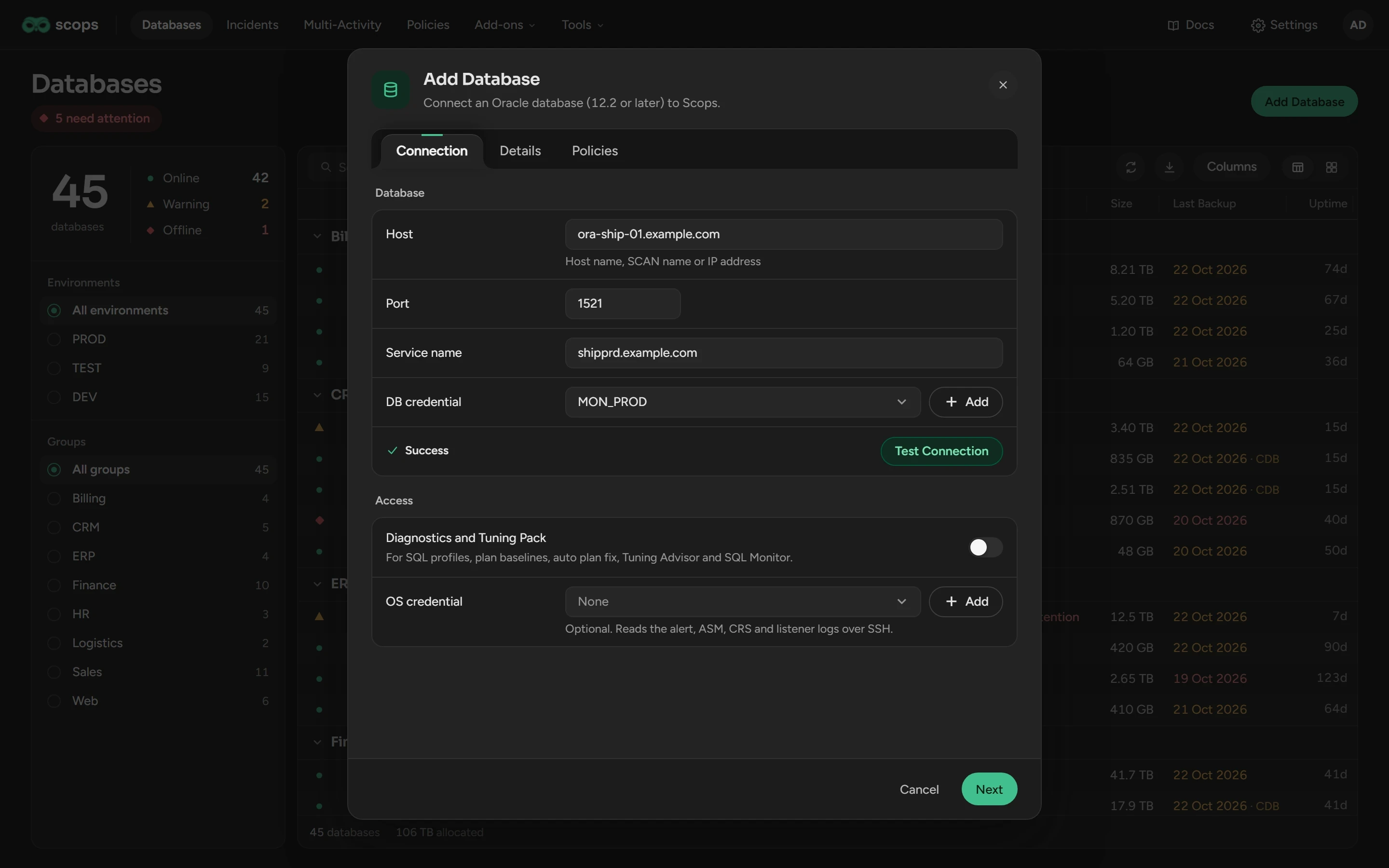
Open Databases in the top bar and click Add Database.
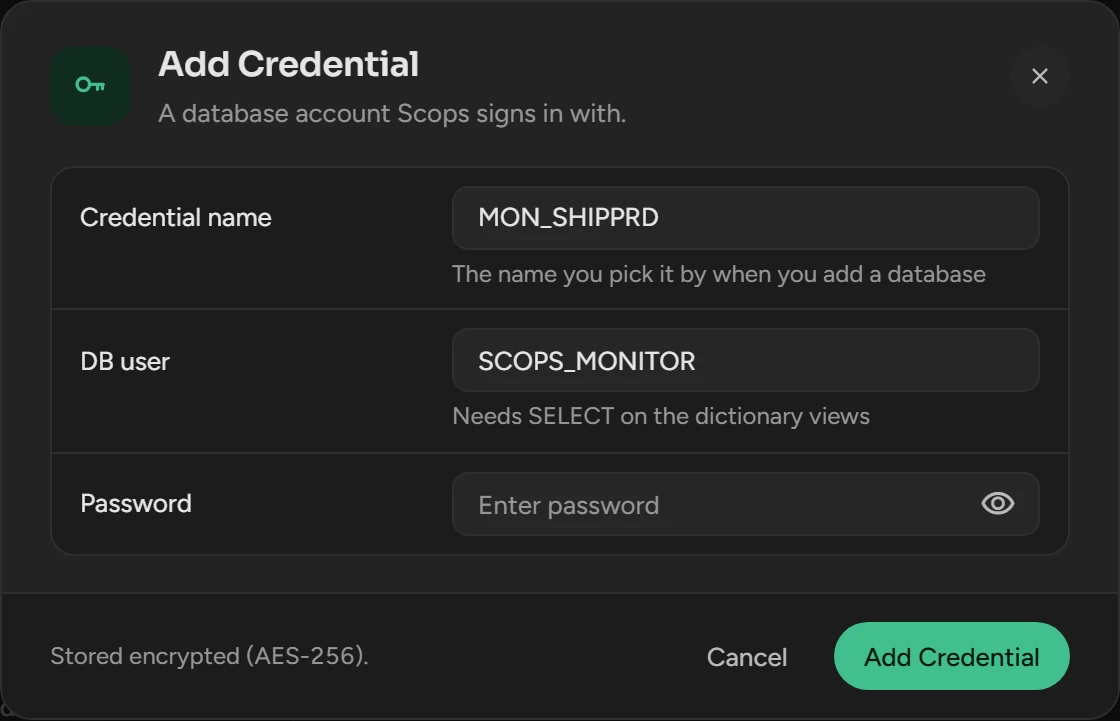
On Connection, enter the Host, Port and Service name. Select the DB credential, or click Add to save a new one.
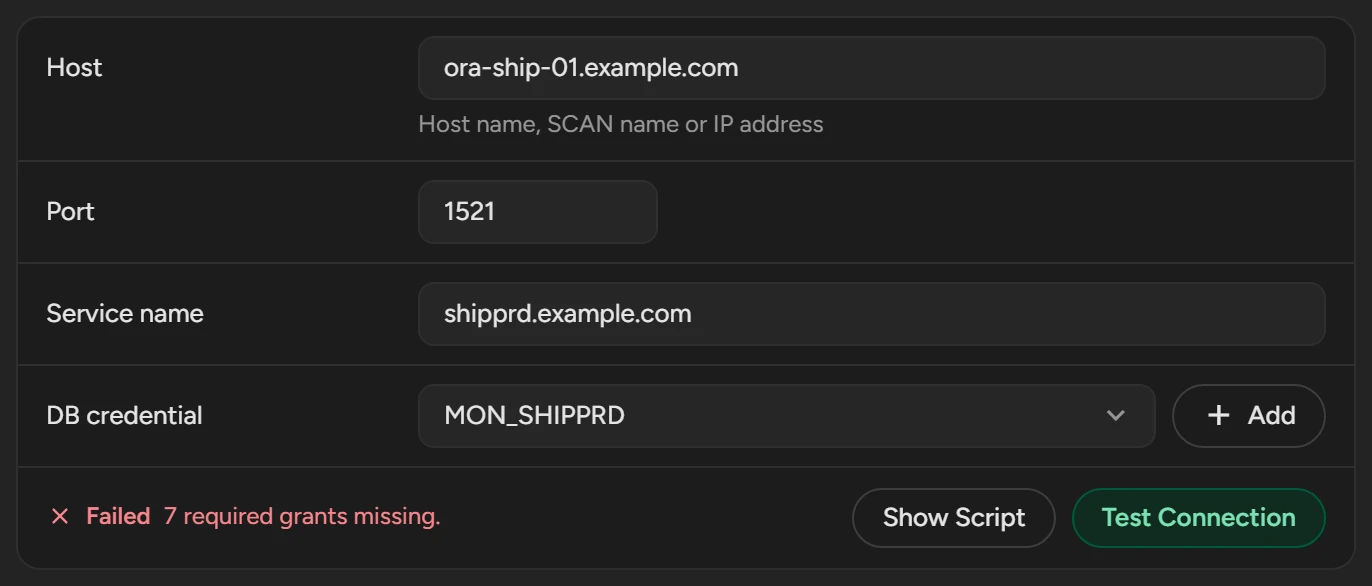
Click Test Connection. The other tabs open only after the test passes. If it fails, see If the test fails.
Click Next. On Details, select the Environment and the Group.
Click Next. On Policies, check the policies and the switches.
Click Add Database.
Collection starts within a minute. A window shows what is ready and what comes next: Radar Engine and Scops AI get more accurate as the history grows. Later, Learning on the database bar shows the same.
Connection
| Field | What to enter |
|---|---|
| Host | The host name, an IP address, or the SCAN name of a RAC cluster. |
| Port | The listener port, 1521 by default. |
| Service name | For a pluggable database, its own service. For a container database, the service of its root. |
| DB credential | The saved user name and password. To add one, you need Manage credentials. |
If the test fails
The cause shows under the fields. Correct it and test again.
| The test says | What to do |
|---|---|
An Oracle error, such as ORA-12514 | See A database cannot connect. |
| "Oracle 12.1 Enterprise is not supported." | Scops cannot monitor this release. |
| "The Oracle version could not be read" | The account cannot read V$INSTANCE or PRODUCT_COMPONENT_VERSION. Grant the required views. |
| "7 required grants missing." | Click Show Script. Ask a DBA to run the Monitoring script as SYS, in the pluggable database for a PDB. |
| "2 Diagnostics and Tuning Pack grants missing." | Do the same, or set Diagnostics and Tuning Pack to off. |
The Grant Script dialog
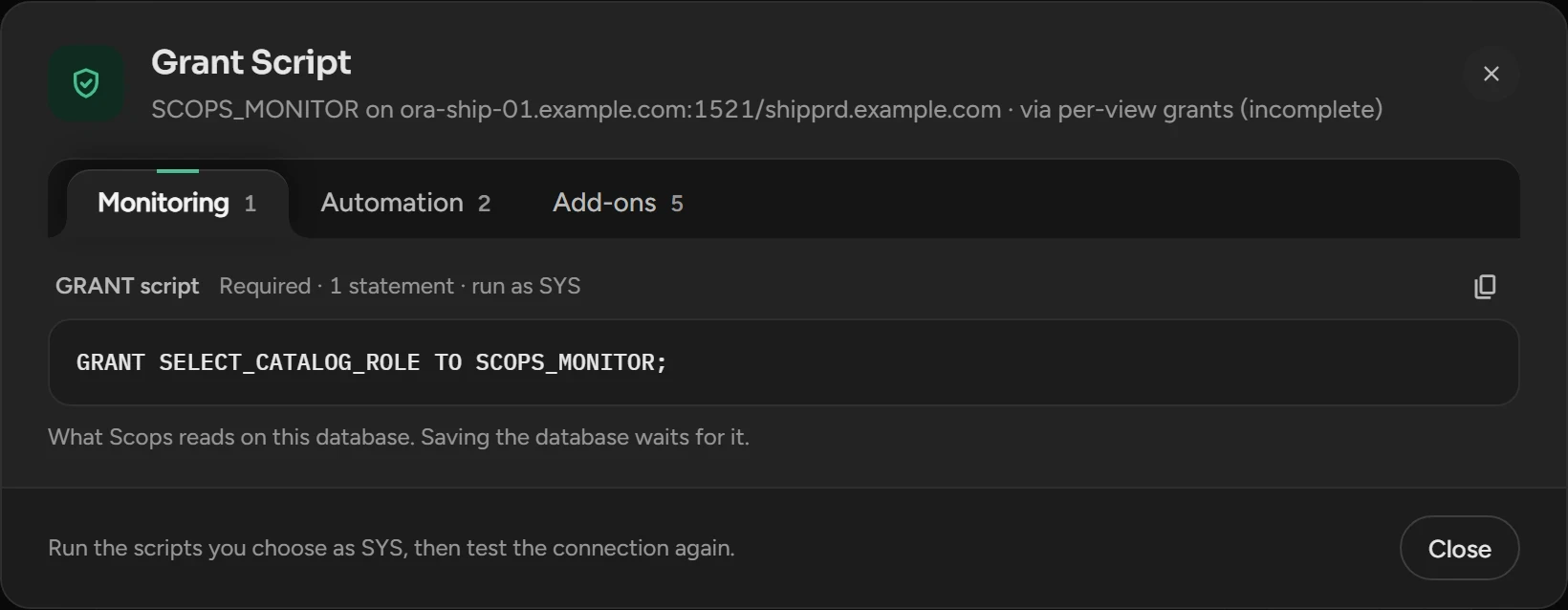
Show Script shows the GRANT scripts for the missing grants in three tabs: Monitoring, Automation and Add-ons. Without the Monitoring grants, you cannot add the database. Grant the other two for the features that you use. See The GRANT script.
Catalog Role asks for the views with one role. If your site does not permit the role, click Individual Grants: the scripts then have one GRANT for each view. See Grant the views one by one.
Turn on Diagnostics and Tuning Pack
Do this only for a database with a license for both Oracle packs. Monitoring does not need them.
On Connection, set Diagnostics and Tuning Pack to on.
Tick the license confirmation. Scops records your user name and the time.
Click Test Connection. The test also checks the pack grants.
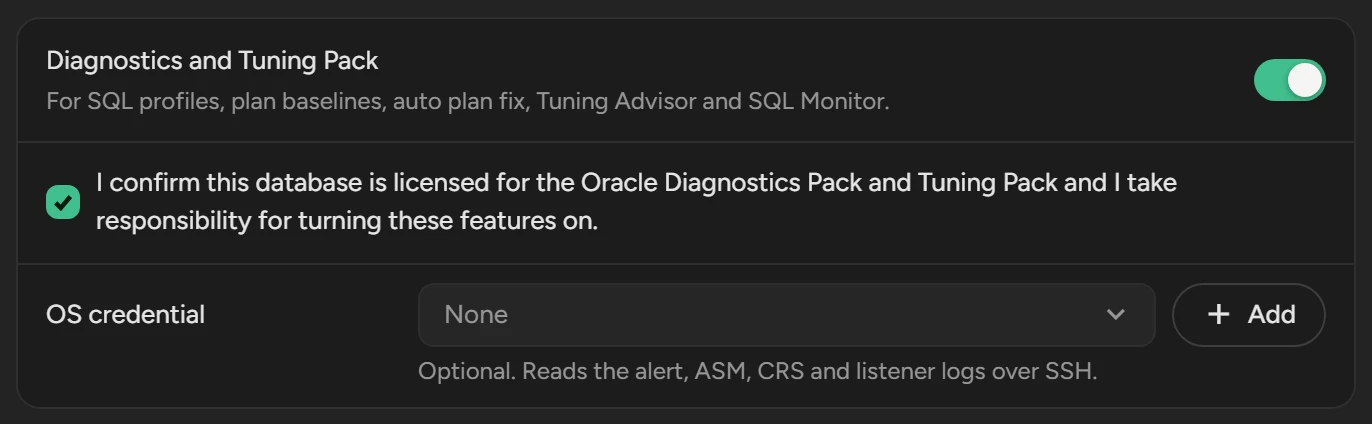
The switch turns on SQL plan baselines, SQL profiles, the automatic plan fix, the SQL Tuning Advisor, SQL Monitor and AWR plans. If you set it to off, Scops removes the confirmation.
Add an OS credential
This is optional. Scops then reads the alert, ASM, CRS and listener logs over SSH, usually port 22.
On Connection, select an OS credential, or click Add next to it.
Use an OS user that can read the Oracle logs, usually
oracleorgrid, not root.
Then select Show OS Logs in the row menu of the database, open Settings, click Find Log Files, turn on Collect OS logs and click Save.
Details
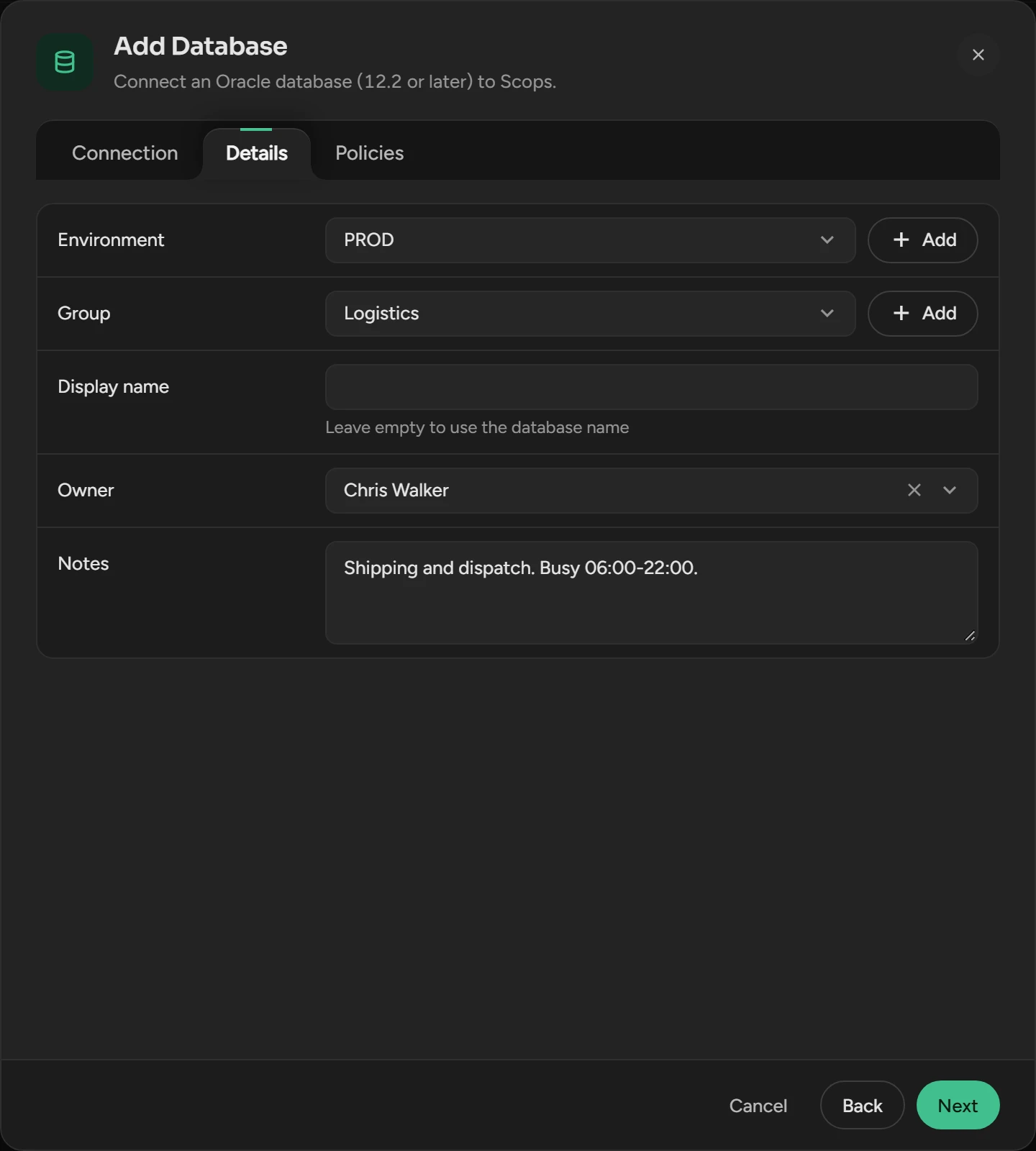
| Field | What it is |
|---|---|
| Environment | Required. Where the database runs, for example Production. To add one, you need Manage environments. |
| Group | Required. The team or application. To add one, you need Manage groups. |
| Display name | A second name for alerts, reports and the database pickers. |
| Owner | The person who owns the database. |
| Notes | Up to 4,000 characters. |
Policies and monitoring
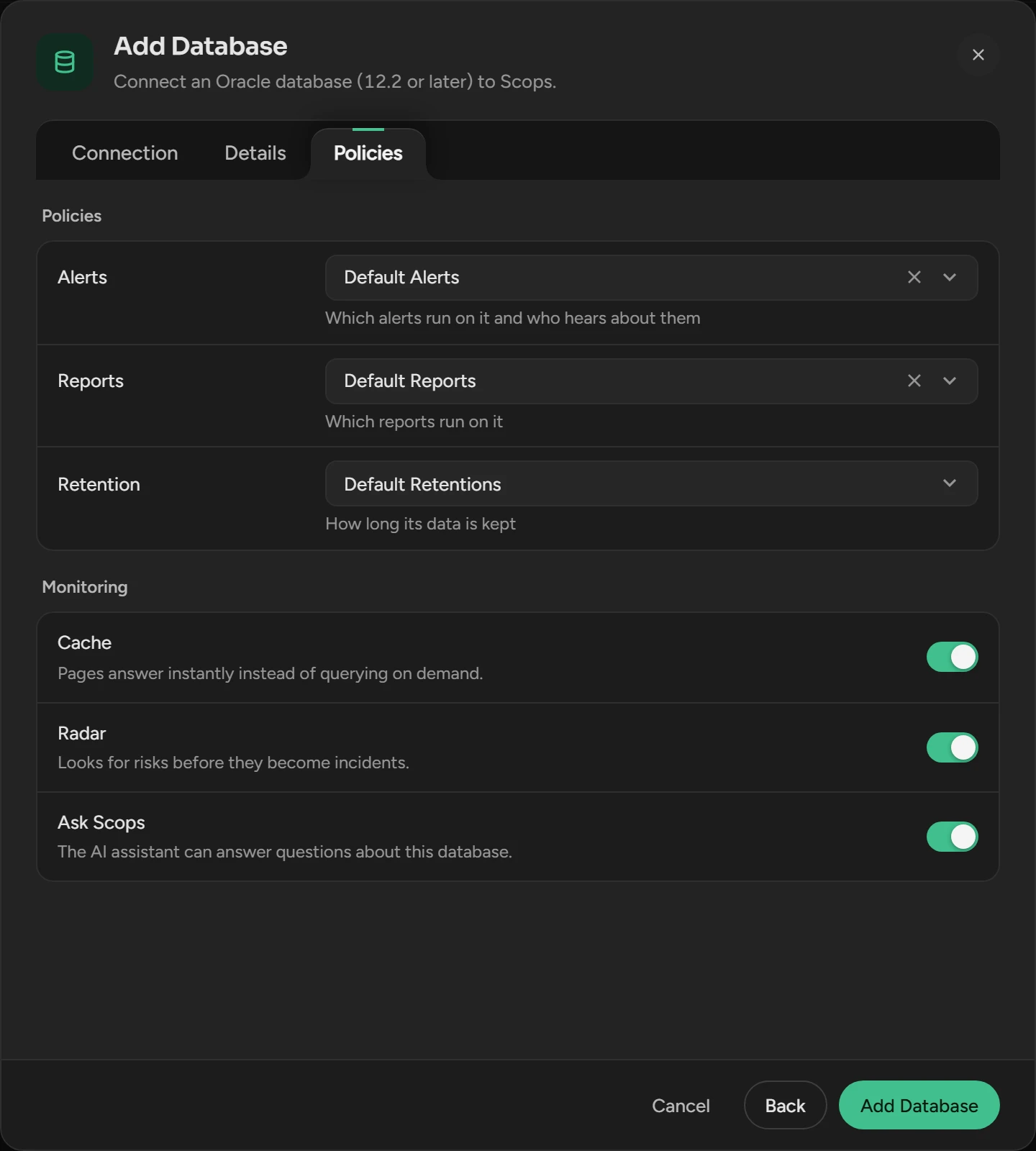
| Field | What it does | Default |
|---|---|---|
| Alerts | The alert policy. | Default Alerts |
| Reports | The report policy. | Default Reports |
| Retention | The retention policy. Required. | Default Retentions |
| Cache | The pages of the database open without a query on the database. | On |
| Radar | Radar Engine looks for risks on the database. | On |
| Ask Scops | Scops AI answers questions about the database. | On, if AI is on |
To change the switches for many databases, use Policies › Monitoring.
After you add the database
| What | First data |
|---|---|
| Status on the Databases page | At once |
| Live Activity and the activity on the Dashboard | Within a minute |
| Alerts, size, last backup and the Objects catalog | Within about 5 minutes |
| Radar Engine and Health Check | Within about 10 minutes |
| Insights and SQL statistics | Within 10 to 20 minutes |
| Growth and trend charts | As history grows |
If Scops refuses the database
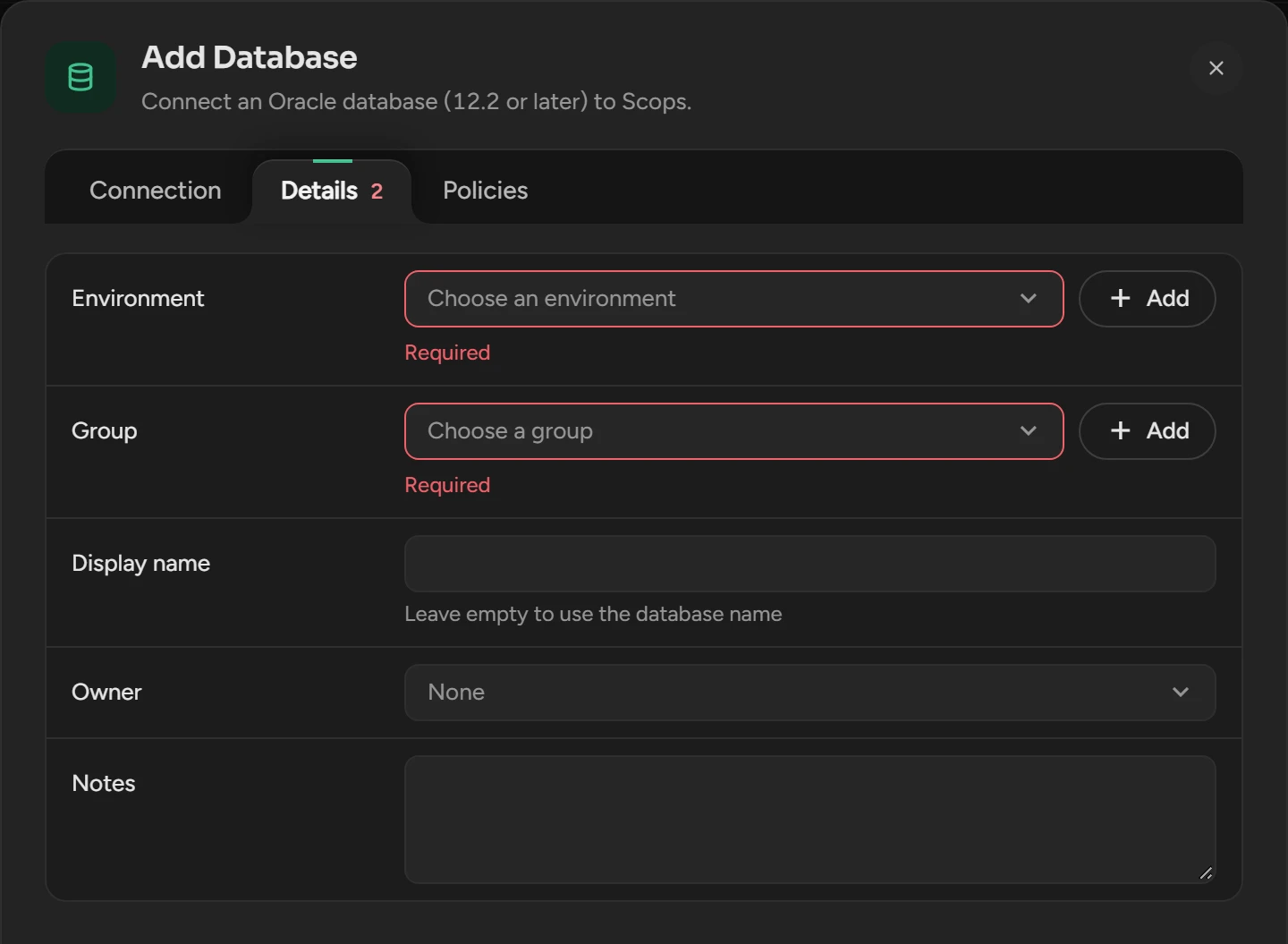
Scops saves nothing and opens the first tab with a problem:
- A required field is empty: it shows Required, and its tab shows a red number.
- The connection test fails. Scops tests again before it saves.
- The edition is full: see When you reach a limit.
- The database is already registered. A standby is a different database.
Edit a database later
On the Databases page, right-click the row and select Edit Database.
Change the fields on any tab and click Save.
You do not have to test again. If you turn on the pack switch, Scops checks the pack grants.
Related
Updated November 10, 2026