Users and roles
Add users and give each one a role, and keep the credentials, groups, environments and owners of your databases.
Before you begin
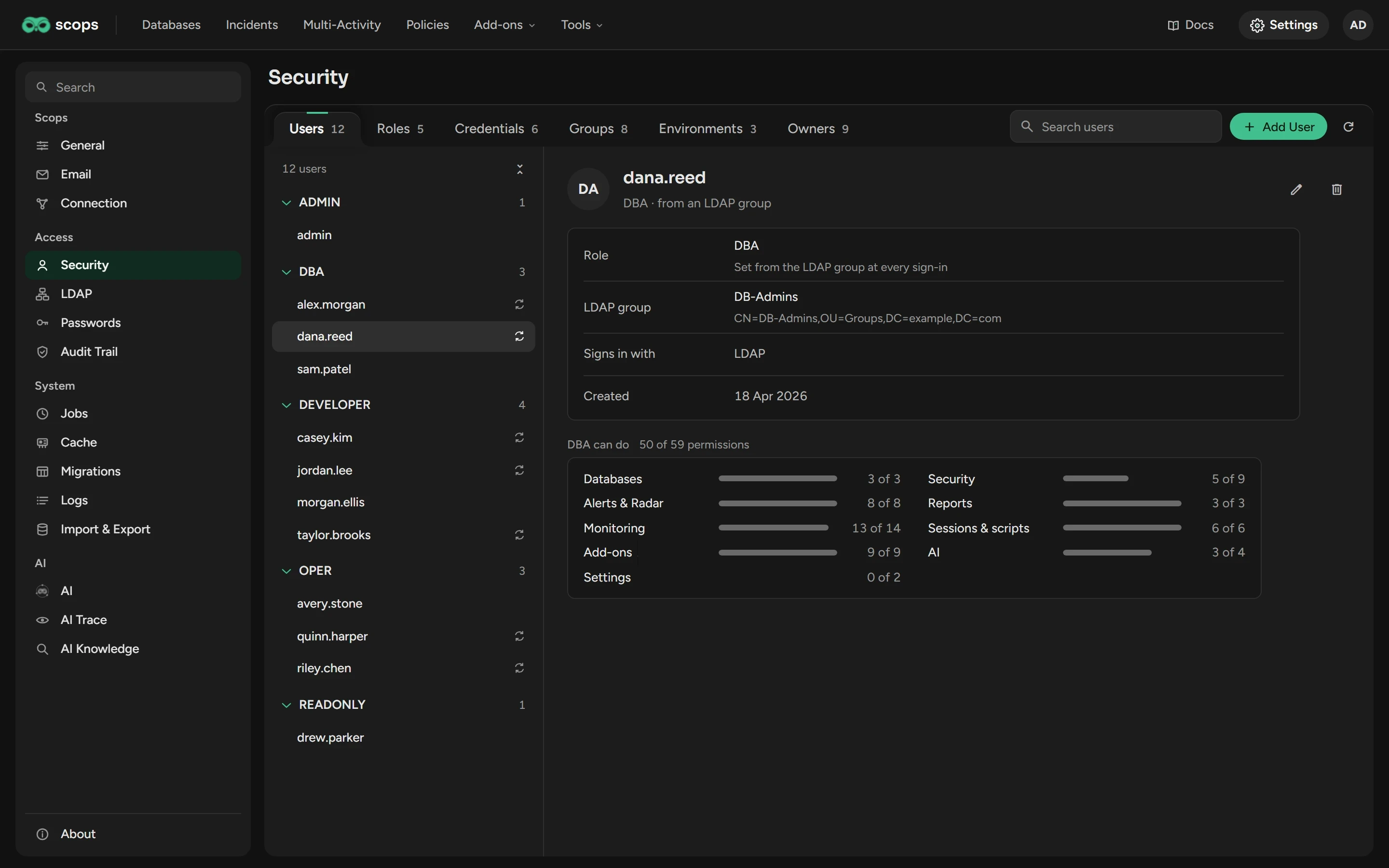
- Open Settings › Security. You need View Security.
- To change a tab, you need its Manage permission, for example Manage users.
Add a user
On the Users tab, click Add User.
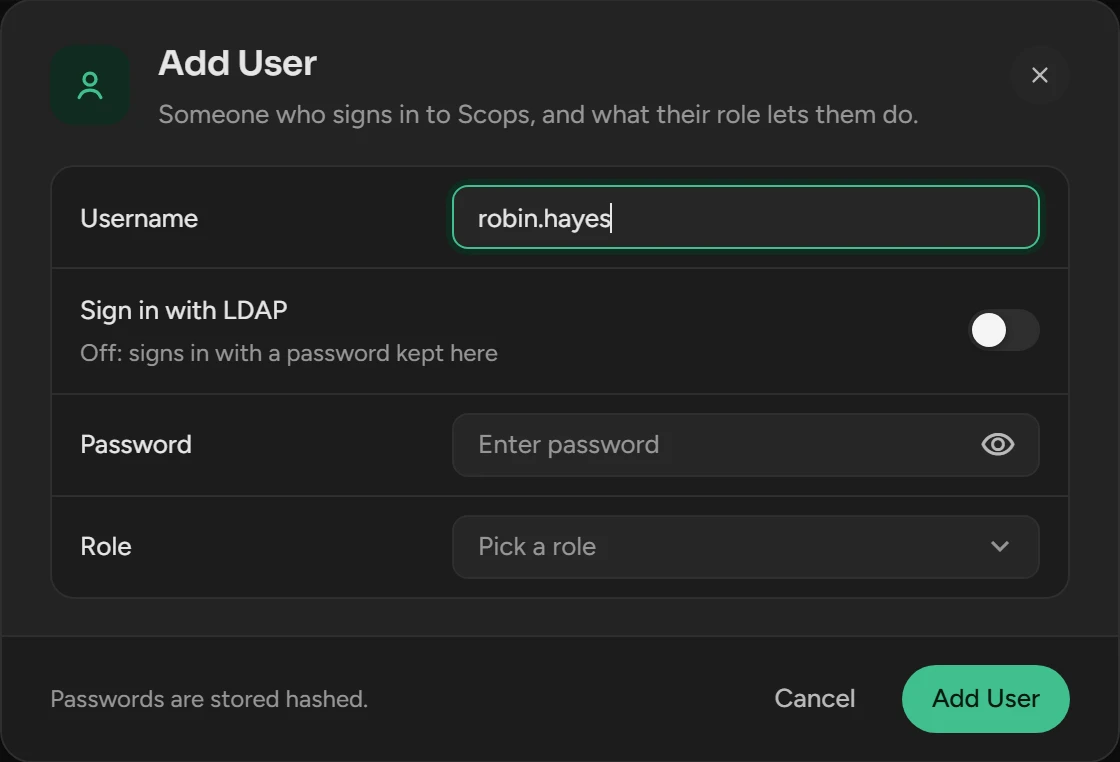
Type the Username as the user types it at sign-in.
For a local user, type a Password. For a directory user, turn on Sign in with LDAP.
Select a Role. For a directory user, you can turn on Role from the LDAP group: the group mappings then set the role.
Click Add User.
A user with the READONLY role cannot sign in. Scops also adds a directory user at the first sign-in, with READONLY if no group mapping matches.
Change or delete a user
Double-click the user.
Change the fields. To reset the password, type a new one, also while the account is locked.
For a directory user, turn off Role from the LDAP group to keep the role that you select.
Click Save.
To delete a user, select the user and click the bin. You cannot undo this. The sessions of the user end at once. You cannot delete the last local ADMIN user. If no one can sign in as admin, see Forgotten admin password.
Build a role
On the Roles tab, click Add Role.
Type a Role name, for example
DBA_TEAM.Select the permissions. The box beside an area name selects the full area.
Click Add Role.
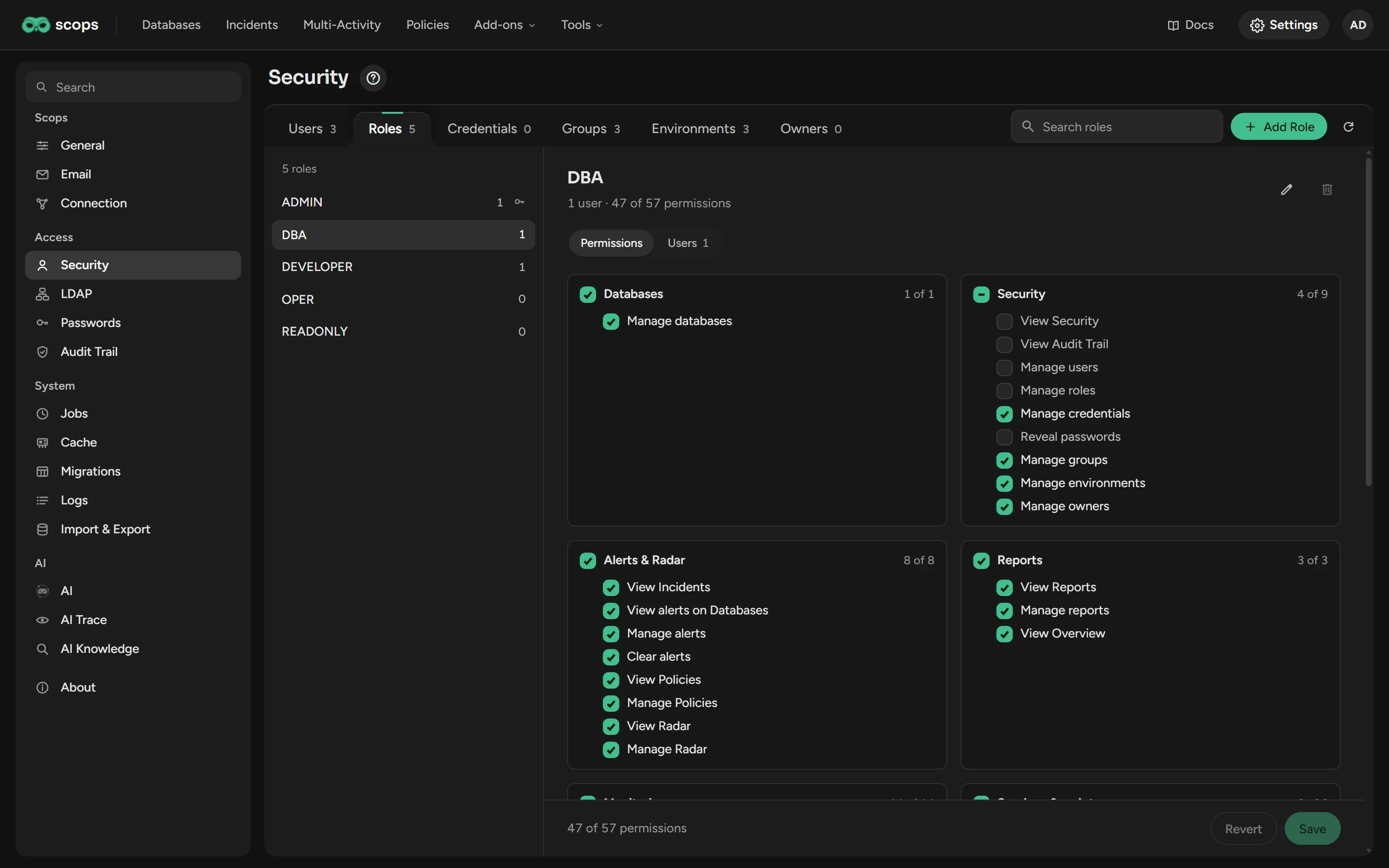
Then give the role to users, or to a directory group in LDAP.
Change or delete a role
On the Roles tab, select the role.
Change the permissions and click Save.
To delete the role, click the bin.
You can delete a role only when no user has it. A change reaches users at their next sign-in, or at once if you sign out all users.
Credentials
A credential is an account that Scops signs in with. You select it by name when you add a database.
On the Credentials tab, click Add Credential.
Select the Type: Database, or Operating system (SSH) to read the OS logs.
Type the Credential name, the DB user or OS user, and the Password. The default SSH port is 22.
Click Add Credential.
- A database account needs the grants. An SSH account is
oracleorgrid, not root. - With Reveal passwords, the eye button shows a saved password for 30 seconds. Scops logs your name.
Groups, environments and owners
On the tab, click Add Group, Add Environment or Add Owner.
Fill in the fields, then click the same button in the dialog.
| Tab | Fields | You cannot delete it while |
|---|---|---|
| Groups | Group name, List position | It has databases or owners |
| Environments | Environment name, Description, List position, Needs attention | It has databases |
| Owners | First name, Last name, Group | The person owns databases |
A lower List position shows first. With Needs attention on, the databases of the environment can go red on the Databases page.
A new installation has the groups Transactional (OLTP), Data Warehouse and Reporting, and the environments Production, Test and Data Guard. Test has Needs attention off.
How access works
- Each user has one role. A user sees only the pages and buttons that the role allows.
- Each user sees all databases. Groups and environments do not limit access.
- ADMIN has all permissions. You cannot change or delete it.
Roles of a new installation
| Role | What it can do |
|---|---|
| DBA | All pages except Settings. Add and remove databases, edit all policies, kill sessions, use Scops AI. It cannot see stored passwords. |
| DEVELOPER | The list of databases, Reports, and the Dashboard, Live Activity, Insights, Sizing and Services pages of a database. It cannot change data or kill sessions. |
| OPER | No permissions. Give it the permissions that you want. |
| READONLY | No permissions. A user with this role cannot sign in. |
Setup writes these roles one time. An upgrade does not change a role, so your changes stay.
Related
Updated November 5, 2026