Archiving
Add tables to Archiving, and Scops copies their old rows into an archive database and, if you choose, deletes them from the source.
Before you begin
- View Archiving opens the page. Manage Archiving sets up databases and tables. Run Archiving stops, starts, archives now and re-syncs. A retry needs both.
- Add the source and the archive database to Scops. Save the archive account, which owns the archive tables, as a DB credential.
- The archive account needs
CREATE TABLEand a tablespace quota. The account of the link needsSELECTon the tables, andDELETEon the tables that delete. See Feature grants.
Archive a database
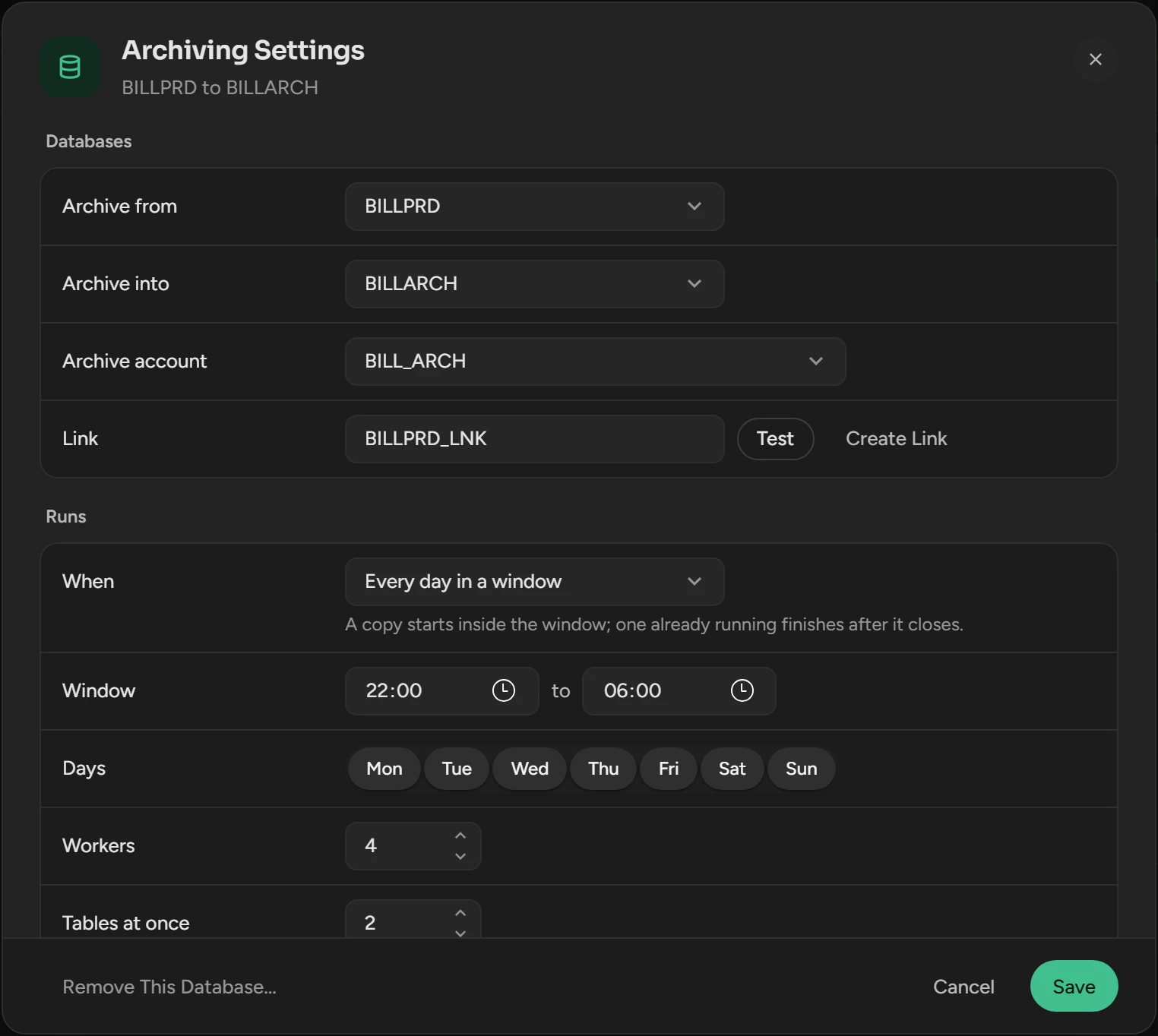
Open Add-ons › Archiving and click Archive a Database.
Select Archive from, the source, and Archive into, the archive database.
Select the Archive account.
Type the Link, a database link in the archive account, and click Test Link.
If the link does not exist, click Create Link. Select Scops's Monitoring Account or Another Account, then click Create Link.
Set When and the other fields. See Settings.
Click Save. Then add the tables.
Create Link needs CREATE DATABASE LINK in the archive account, and replaces a link with the same name.
Add tables
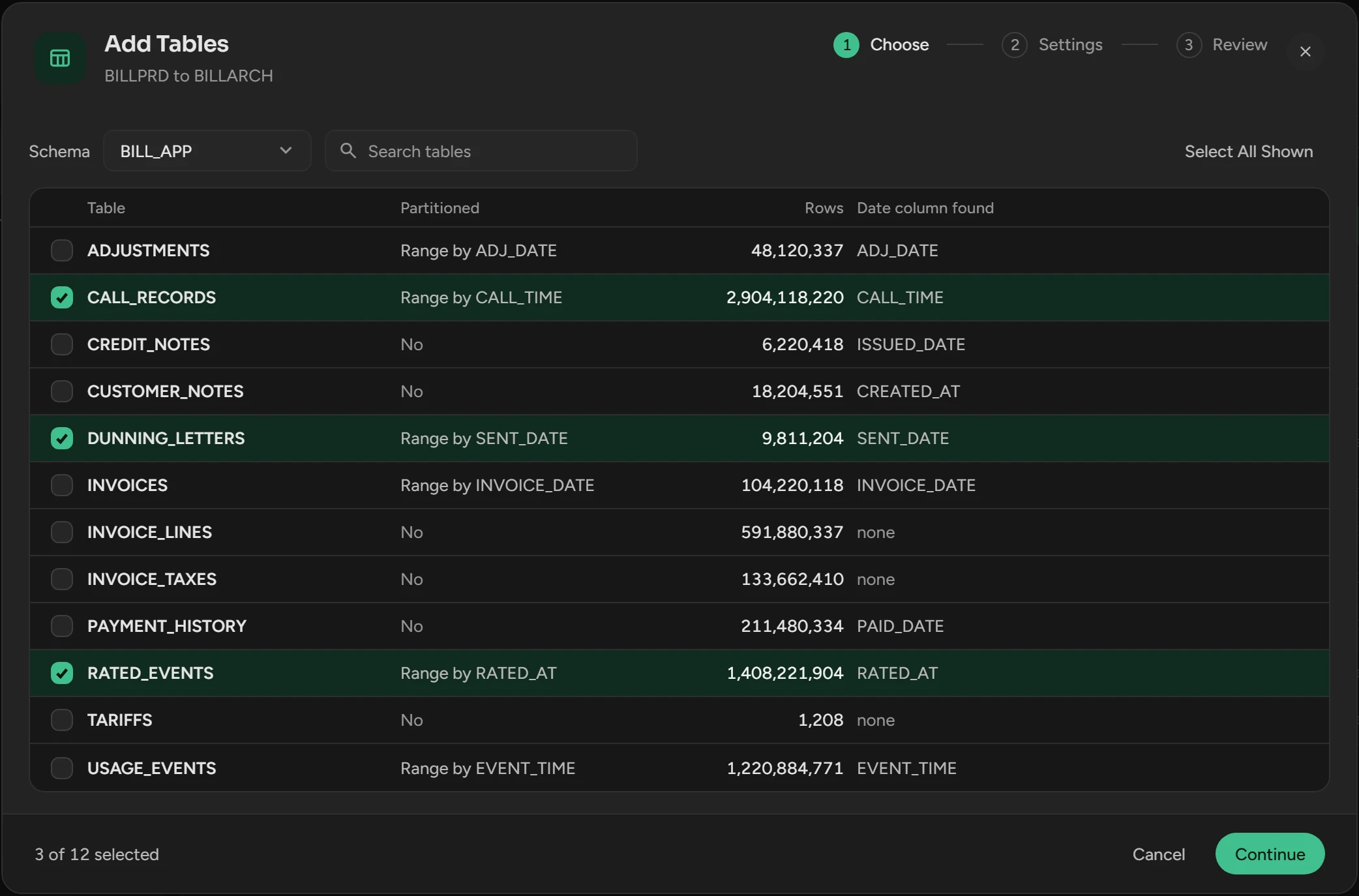
Click the database. On Tables, click Add Tables.
On Choose, select a Schema and tick the tables.
On Settings, set the rule and the archive. See Settings. To archive the tables that point at these tables, turn on Archive the tables that point at these.
On Review, check the rule column and the archive table of each table. Linked tables are under the table that they point at.
Click the Add button, for example Add 3 Tables. Scops checks the new tables at once.
With Delete after archiving, a row leaves the source only in the transaction that copies it. If the copy and the delete count different rows, Scops rolls back the chunk. A table that only copies never writes to the source.
Check a table
A table runs only after a check passes. The check reads both databases and changes nothing.
Click Check All on Tables, or Check in the More menu of a table. The buttons of a row show when you move the pointer over it.
Open the row of the table. A problem shows at once. To see the other findings, click their link, such as "1 warning · 2 notes".
Correct each problem and check again. For a missing grant, the check gives the
GRANT.
A problem makes the table Blocked, for example a link that does not connect, or a VPD policy that hides rows from the link. Other findings tell you what to expect, such as a DELETE trigger that fires for each deleted row.
Archive linked tables
When a table deletes after archiving, the tables that point at it with a foreign key must go with it. If not, they point at rows that do not exist.
In Add Tables, on Settings, turn on Archive the tables that point at these. Delete after archiving turns it on for you.
On Review, the linked tables are under the leading table. To change them, click the link button of the leading table.
Tick the tables under Tables that point at.
Click Safe Order: the deepest tables first, the leading table last.
Click Save.
For a table that is already on the database, click Linked Tables in the More menu of the leading table.
A group has up to 50 tables. If one table of the group is stopped or blocked, the whole group waits.
Set when archiving runs
Click Settings on the database.
Select When, and set its times on the clock of the Scops server.
Click Save.
When a window closes, the running chunk finishes. The rest waits for the next window.
Archive now
Click Archive Now on the database. A pass starts within a minute, whatever the window or the schedule.
Re-sync a table
A re-sync copies the rows that the archive does not have, for example rows that came late. On a table that deletes, it also moves the old rows that are still on the source.
Click Re-Sync in the More menu of the table, or set its Re-sync setting.
A table with No index does not re-sync, because Scops cannot find the rows that the archive does not have. If one table of a group has no index, the group does not re-sync.
Retry a failed unit
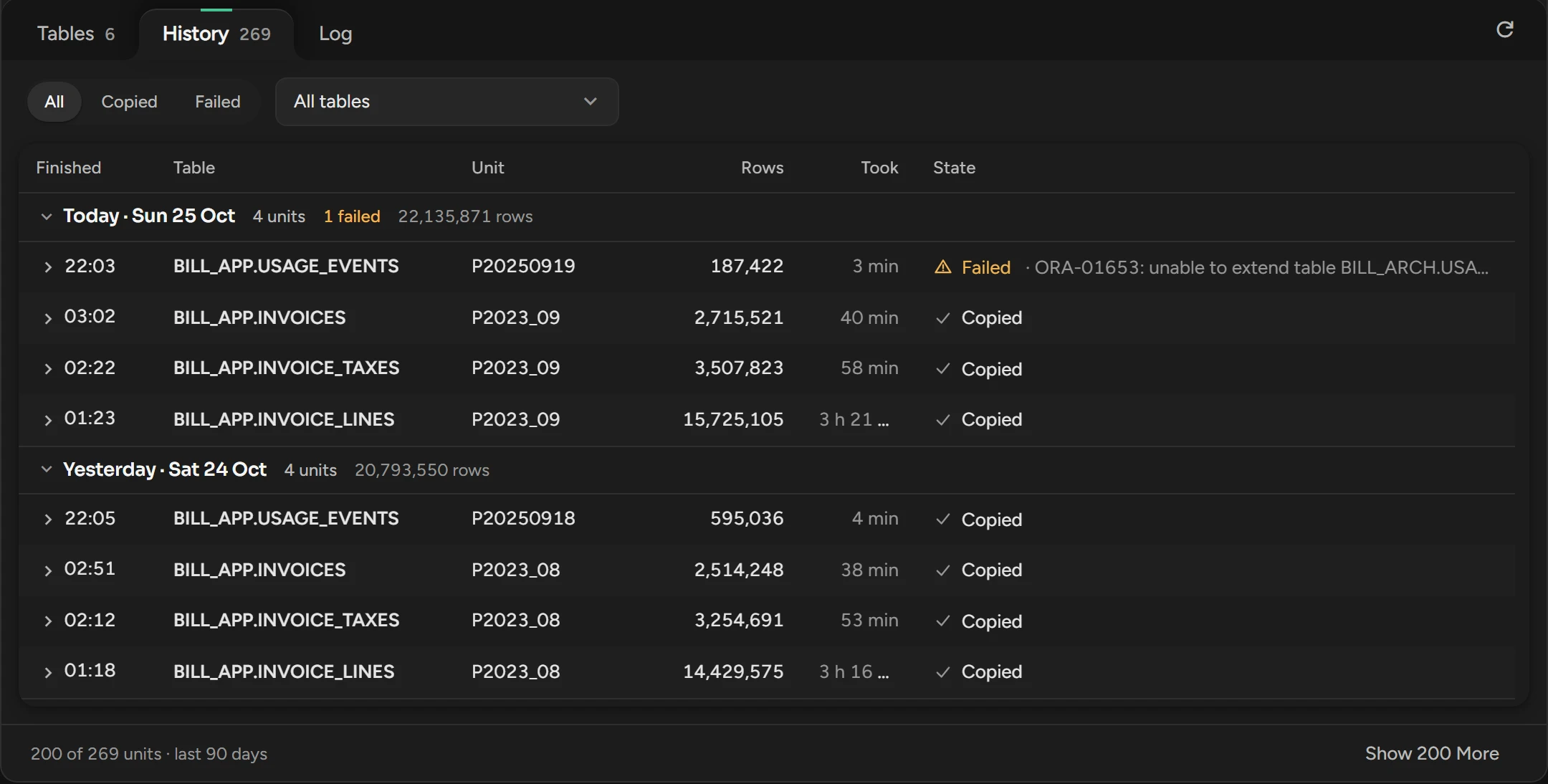
Open the table on Tables, or the failed unit on History, to see its error.
Correct the cause, for example add space to the archive tablespace.
Click Retry. The next pass copies the remaining chunks.
A chunk that fails gets up to 3 tries, then its unit fails. No space on the archive database, such as ORA-01653, fails the unit at once. A chunk that rolls back because the source was busy is not a failure. If a database stops answering, the unit does not fail: Archiving waits and continues by itself when the database answers again.
Stop and start
| To stop | Do this | What happens |
|---|---|---|
| A database | Click Stop on the database. | Scops kills the running copy on both databases, and Oracle rolls back the chunk. |
| A table | Click the stop button on its row. | The running chunk finishes. Then nothing new starts for the table. |
Start starts again. To kill a copy, Scops needs ALTER SYSTEM on both databases.
Remove a table or a database
Click Remove in the More menu of a table. If it leads a group, its linked tables go too. To remove all tables of a database, click Remove This Database in its settings.
A remove drops nothing. Scops never deletes, truncates or drops archive rows or tables. Drop them yourself if you do not need them.
What you see
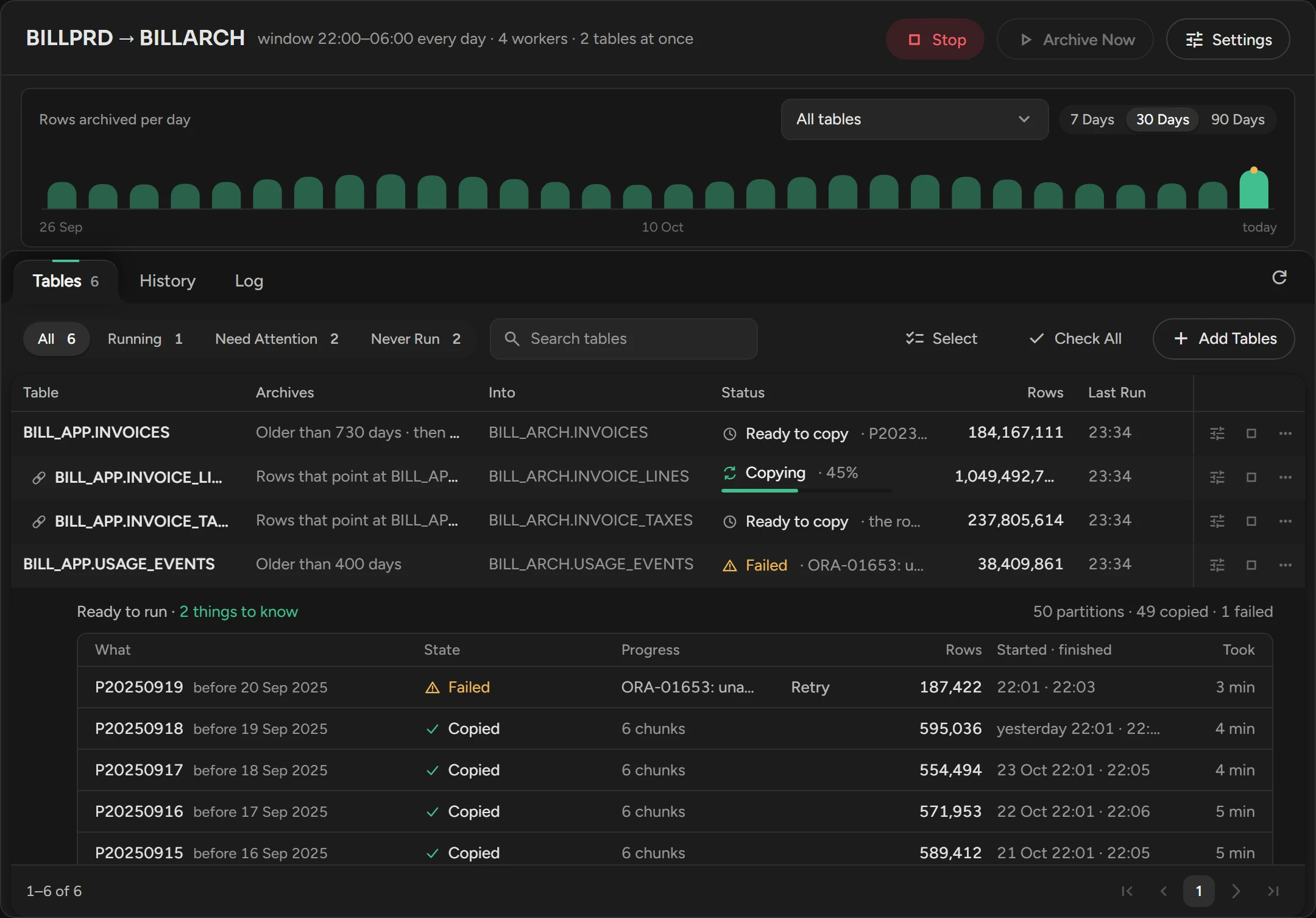
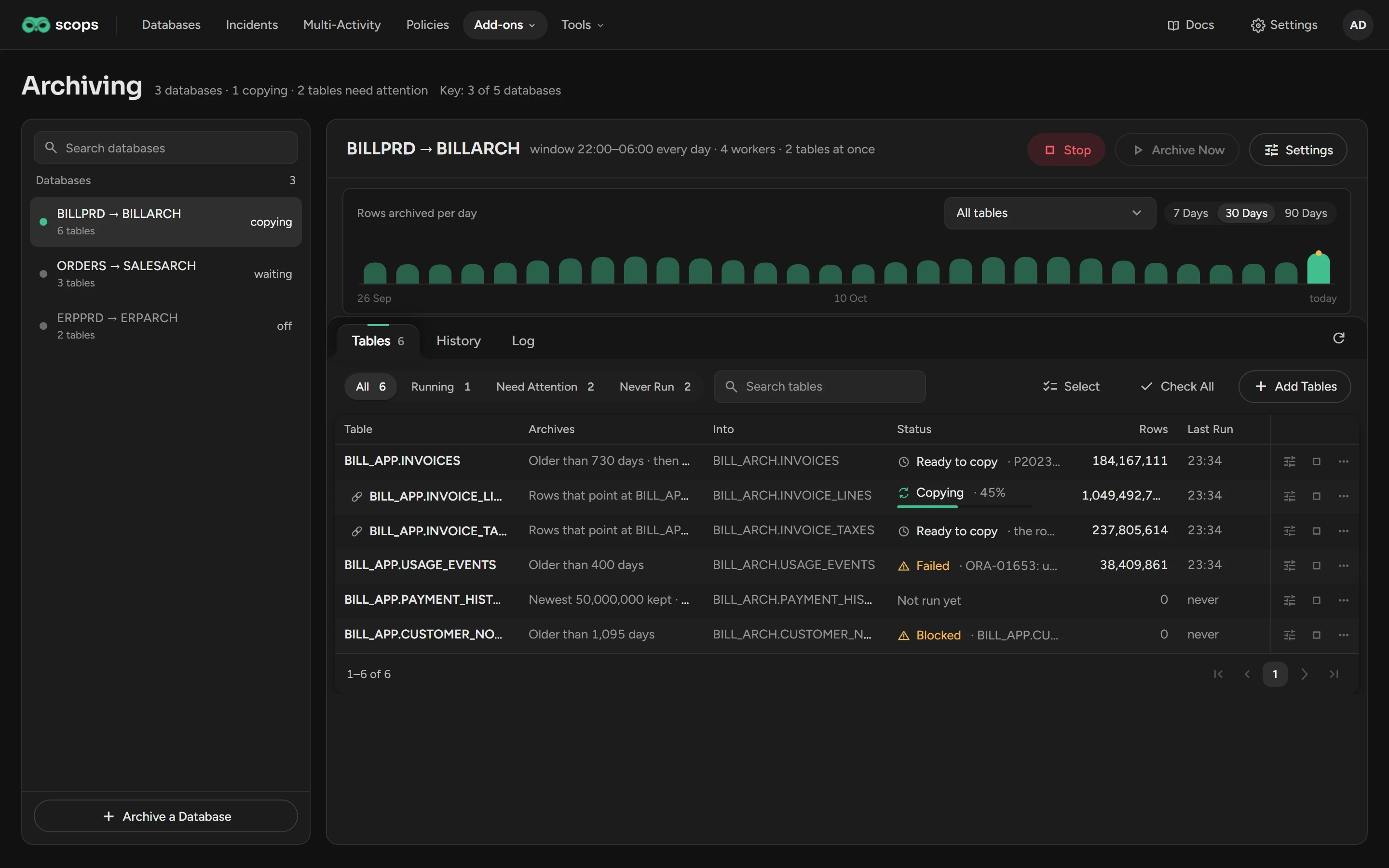
A unit is a partition, or the rows that the rule selects. Scops cuts a unit into chunks, and each chunk is one transaction. Open a table to see its archive table, its check and its latest 50 units. A failed unit comes first, with its error. To show the archive table in the list, add Into with Columns.
| Status | What it means |
|---|---|
| Copying | A unit copies now. |
| Ready to copy | A copy is planned and not finished. |
| Up to date | All the planned work is copied. |
| Failed | A unit failed and waits for you. |
| Blocked | The check found a problem. |
| Stopped | You stopped the table. |
| Not run yet | The table has not copied anything. |
History keeps the units of 90 days, and their chunks for 14 days. In Rows archived per day, a dot marks a day with a failure.
All times on the Archiving page use the clock of the Scops server.
Settings
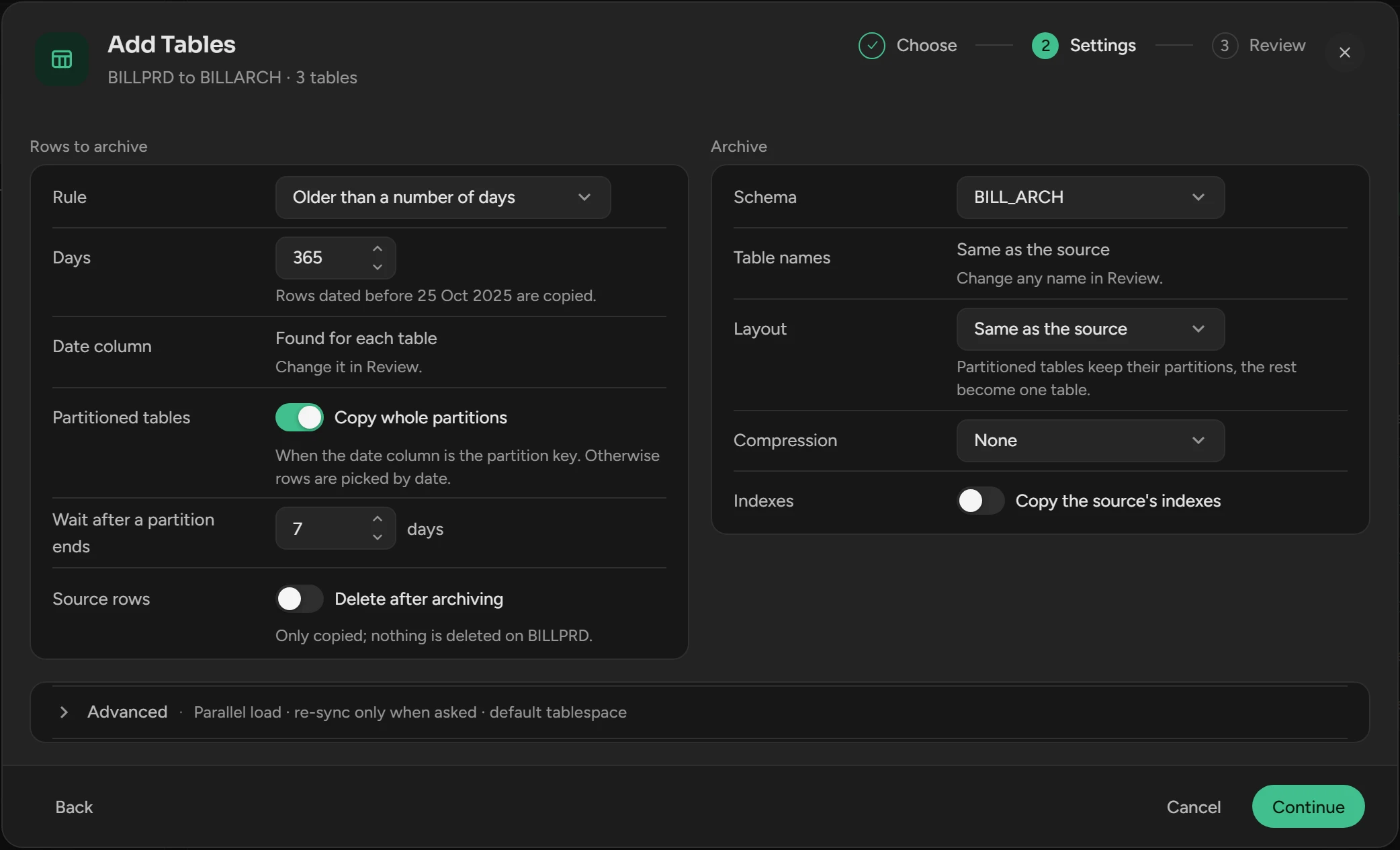
The first four settings belong to the database. The others belong to each table: set them in Add Tables, or with the settings button of a table. Load, Re-sync, Wait after a partition ends, Indexes and Tablespace are under Advanced.
| Setting | What it does | Default |
|---|---|---|
| When | At any time, Every day in a window, On a schedule, or Only when I run it. | At any time |
| Parallel | Sessions that copy one table at the same time, 1 to 8. | 1 |
| Tables at once | Tables that copy at the same time, 1 to 16. Each table gets its own Parallel sessions. | 1 |
| Chunk size | The disk space of one chunk, 8 to 1,600 MB. | 80 MB |
| Rule | Older than a number of days, Keep the newest values of a number column, or Partitions by name. | Older than a number of days |
| Copy whole partitions | Shows when a table has partitions. Copies whole partitions when the rule column is the partition key. | On |
| Delete after archiving | Deletes the rows from the source in the transaction that copies them. | Off |
| Linked tables | Archive the tables that point at these archives the tables that point at your tables with a foreign key, in one group. Delete after archiving turns it on. | Off |
| Schema | The schema of the archive tables. To change a table name, use Archive as on Review. | The archive account |
| Layout | Same as the source, One plain table, Range partitions by the key, or Use the existing tables. | Same as the source |
| Compression | None, Basic, Advanced (OLTP), or a Query or Archive level. Only Advanced (OLTP) shows a license confirmation under this setting: I confirm <archive database> is licensed for Oracle Advanced Compression and I take responsibility for compressing its archive tables. You must tick it before you click Continue or Save. Scops records your user name and the time. | None |
| Load | Parallel or Direct path. Delete after archiving needs Parallel. | Parallel |
| Re-sync | Only when asked, or every 7, 30 or 90 days. | Only when asked |
| Wait after a partition ends | For a date rule that copies whole partitions: days to wait after the upper bound of a partition. Scops never copies a MAXVALUE partition. | 7 days |
| Indexes | Copy the source's indexes to the archive table. | Off |
| Tablespace | Where Scops creates the archive tables. | The default of the account |
| Recognise rows by | The unique key that keeps a table that only copies from writing a row twice. Without a primary key, select A unique index on the archive. No index: a row can repeat creates no index on the archive. After an interruption, a row can be in the archive twice, and nothing finds it. You must accept this before you click Save. A table with no index does not re-sync. | The source's key |
| Filter | One condition on the columns, such as STATUS = 'CLOSED'. | None |
Related
Updated November 3, 2026