Sign in for the first time
Sign in as admin after Setup, then create the recovery code for the passwords that Scops stores.
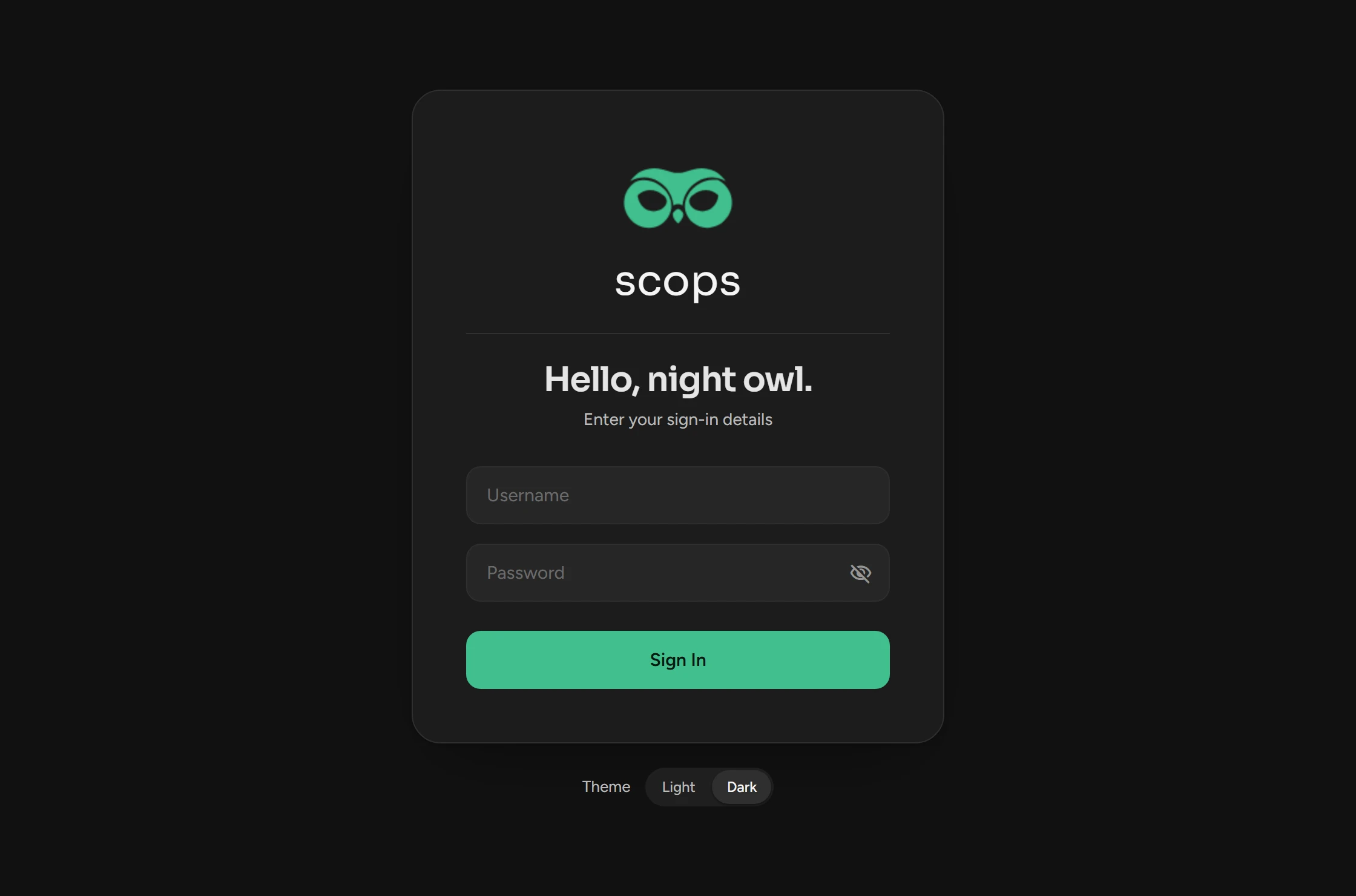
Sign in
Open
https://<server>:5138, or use the Scops shortcut on the server.In Username, type
admin. In Password, type the password that you set in Setup.Click Sign In. Scops opens the Databases page.
After 5 failed attempts in a row, Scops locks the account for 15 minutes. A session lasts 12 hours.
If the page shows a notice under Sign In, see The sign-in page shows a notice.
The recovery code
On a new server, Scops can read its stored passwords only with the recovery code. Without the code, you must enter them all again.
Create the recovery code
You need the Reveal passwords permission, which admin has.
Open Settings › Passwords.
Under Stored passwords, click Create Recovery Code.
Copy the code into your password manager. Keep it away from the Scops server.
Click Done. Scops does not show the code again.
Use the recovery code
On a new server, Settings › Passwords says that Scops cannot read the stored passwords.
Sign in and open Settings › Passwords.
Under Stored passwords, type the code in Enter the code and click Unlock.
If you lost the code, click Start With a New Key. Then enter each stored password again: the credentials in Settings › Security, then the mail, LDAP and AI settings.
Choose your theme
Click your initials at the right end of the bar.
In Theme, select Light or Dark.
Scops opens in the dark theme and keeps your choice in this browser.
Related
Updated October 31, 2026