Editions and activation
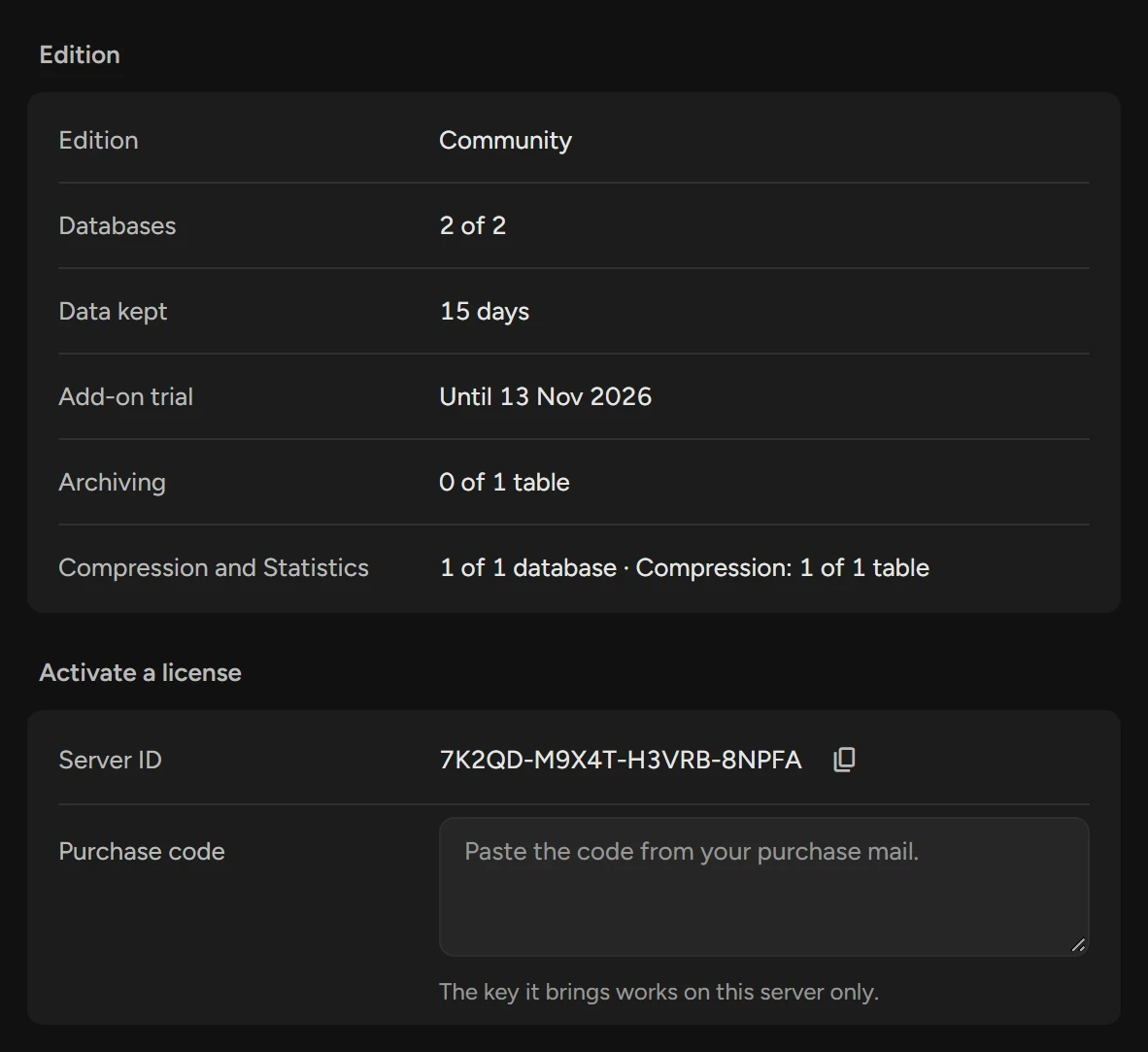
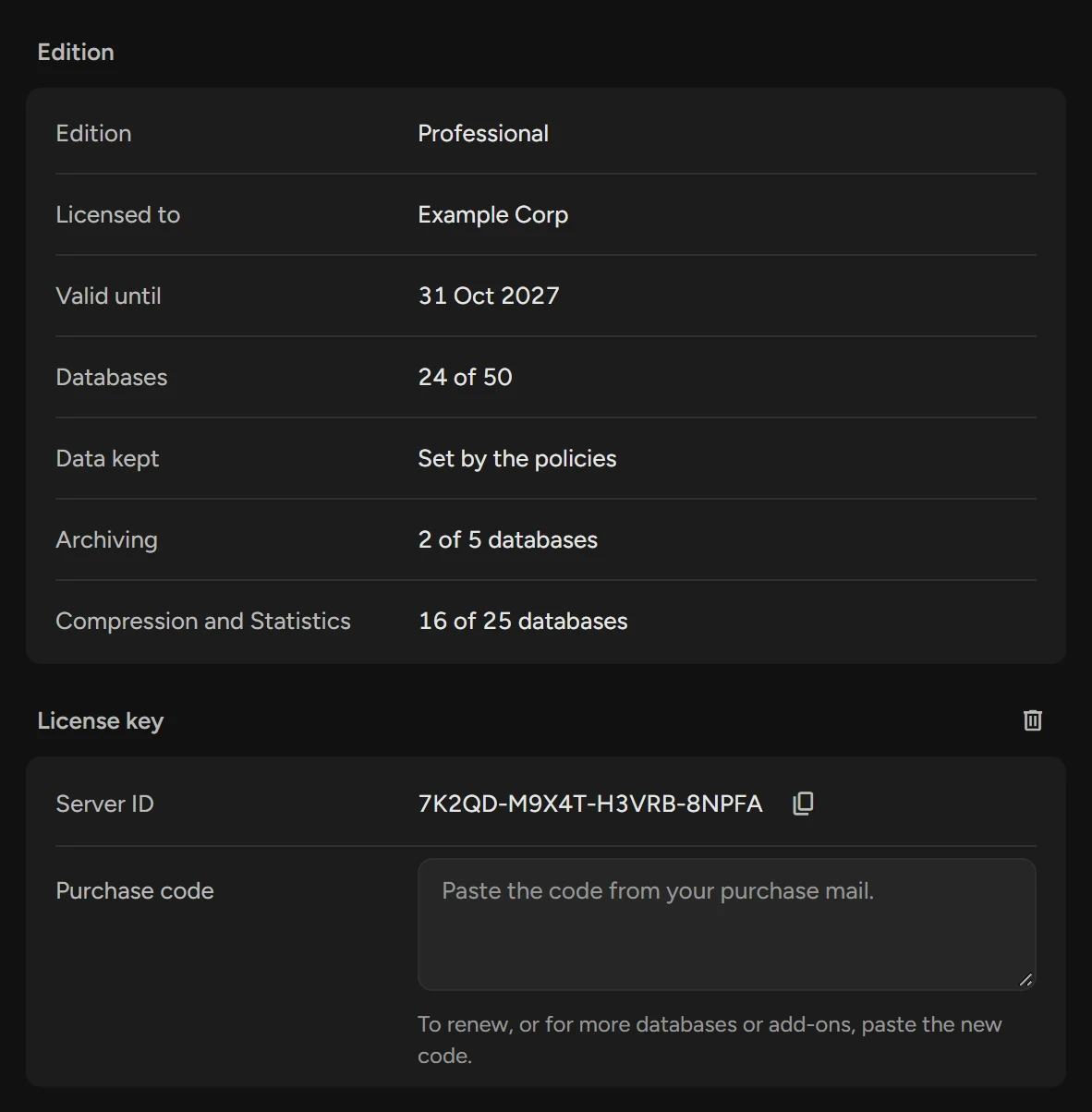
Activate a license key to change a Community installation to Professional, and see the limits of each edition.
Before you begin
- You need the purchase code from your purchase mail.
- You need Manage Settings and Manage edition key.
Activate a license key
Open Settings › About.
Paste the purchase code into Purchase code.
Click Activate. The Edition group shows Professional.
The key works only on this server. Scops sends only the purchase code and the Server ID to https://scops.dev.
Activate a server that has no internet
In Settings › About, copy the Server ID.
On a device that is online, open
https://scops.dev/activate.Enter the purchase code and the Server ID, and click Activate.
Copy the key, or click Download key.
Paste the key into Purchase code and click Activate.
Renew a key
Paste the new purchase code into Purchase code and click Activate. The new key applies from its first day. Do the same for more databases or add-ons.
An ended key works for 14 more days. Then Scops uses the Community limits, but it does not cut your data to 15 days while the ended key stays in place.
Remove a key
In Settings › About, click the bin button of the License key group.
Click Remove the Key. The server runs as Community.
Move a key to another server
On the old server, write down the Server ID, then remove the key.
Open
https://scops.dev/release, enter the purchase code and the old Server ID, and click Release.On the new server, activate the same purchase code.
You can release up to 2 servers from one purchase code in 12 months. A new server has its own Server ID, also with the same repository. If you install Scops on the same server again, the Server ID and the key stay.
What each edition allows
| Community | Professional | |
|---|---|---|
| Databases monitored | 2 | The number in your key |
| Data kept | 15 days | As your retention policies set |
| Archiving | 1 table, for a 30-day trial | The databases in your key |
| Compression and Statistics | 1 database, for a 30-day trial. Compression on 1 table of it. | The databases in your key |
| Everything else | All database pages, Radar Engine, alerts, reports and Scops AI. | |
- Each registered database counts, also each pluggable database, a standby and a database that you only archive into.
- Compression and Statistics share one limit: a database counts one time.
- The trial starts on the day that Scops created the repository. Then the add-ons stop until you enter a purchase code.
- A key can leave out an add-on. Its page then shows "Not in your key".
When you reach a limit

Scops disables Add Database and the add buttons on the add-on pages, and shows a line such as "2 of 2 databases". An import stops at the same limit.
Databases beyond the limit
If you have more databases than the edition allows, for example after a key ends, Scops monitors the ones that you registered first. The others show as Not Monitored: Scops keeps them, but does not collect data from them, alert on them or open them. When you delete a monitored database, the next one gets its place.
Related
Updated November 2, 2026