Passwords
Change your password, and keep the key and the recovery code that protect the passwords that Scops stores.
Before you begin
You need Manage Settings. The buttons of Stored passwords also need Reveal passwords.
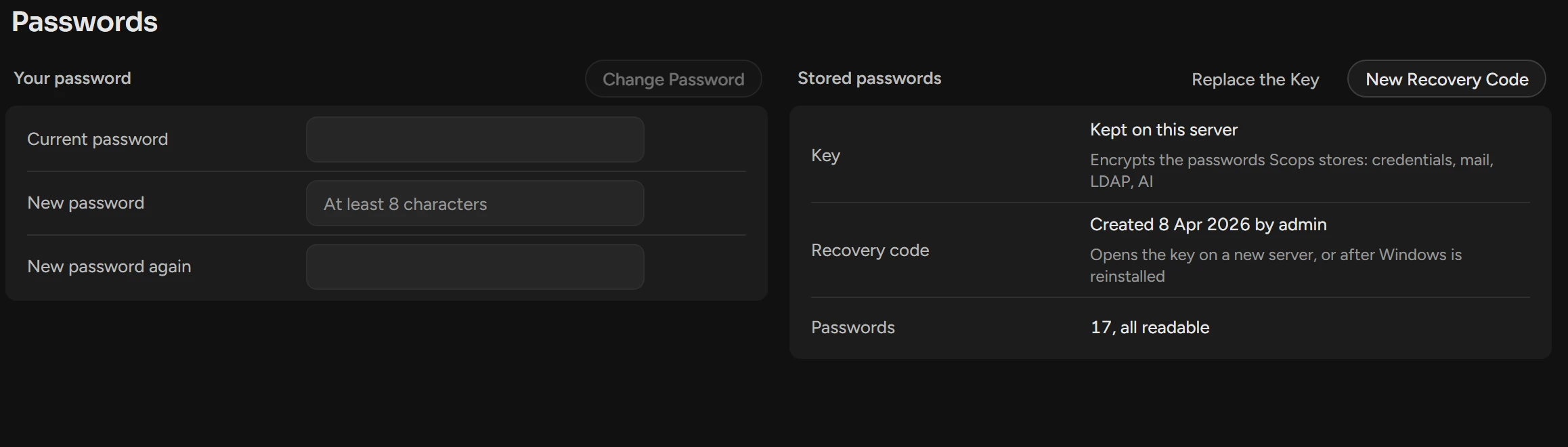
Change your password
Type your Current password.
Type the New password, 8 characters or more, two times.
Click Change Password.
A wrong current password counts for the sign-in lockout. LDAP users change their password in the directory.
Stored passwords
One key encrypts all the passwords that Scops stores: credentials, mail server, LDAP and AI. Windows protects the key on this server. The repository keeps two copies of the key: one that only this Windows installation opens, and one that only the recovery code opens.
If you install Scops on the same server again, Scops finds the key without the code.
Create the recovery code
Do this immediately after you install Scops. Without the code, a new server cannot read the stored passwords.
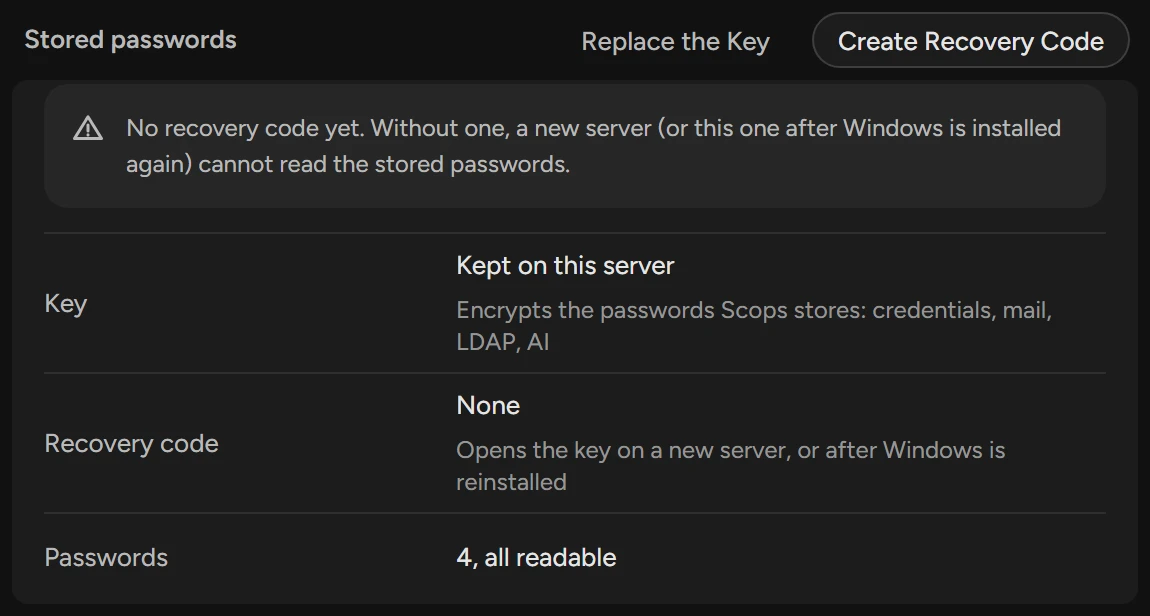
Click Create Recovery Code. The dialog shows the code only once.
Keep a copy away from the Scops server, for example in a password manager.
Click Done.
New Recovery Code makes a new code. The old code then does not work.
Unlock the passwords on a new server
On a new server, or after Windows is installed again, Key shows "Not on this server". Scops cannot read the stored passwords.
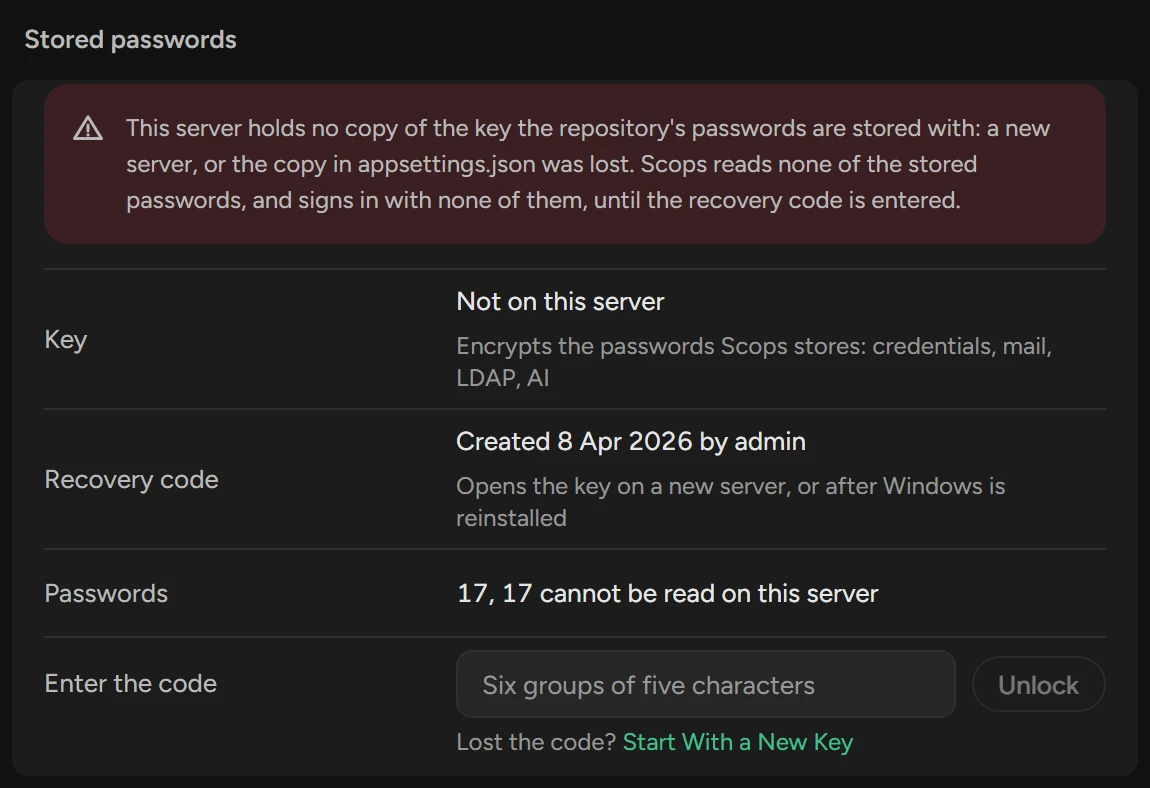
Type the recovery code in Enter the code. Case, spaces and dashes are not important.
Click Unlock.
On the server, you can also run "C:\Program Files\Scops\api\Scops.Api.exe" --recovery-code as administrator, type the code, and restart ScopsApi.
Start with a new key
Do this only when the recovery code is lost.
Under Enter the code, click Start With a New Key.
Click Start With a New Key in the confirmation.
The passwords stored with the old key stay unreadable. You must type each one again: credentials, mail server, LDAP and AI.
Replace the key
Click Replace the Key, then Replace the Key in the confirmation.
Keep a copy of the new recovery code, and click Done.
Scops encrypts all stored passwords again. The old recovery code does not work after this.
Related
Updated October 31, 2026