Automatic plan fix
Let the SQL Plan Change alert set a slow statement back to its best recent plan with a SQL profile.
Before you begin
- You need View Policies and Manage Policies. To save or remove the plan fix, you also need Manage SQL plans.
- The plan fix works only on databases with the Diagnostics and Tuning Pack switch on. Turn it on only where you have a license for both packs.
- The monitoring account needs the pack grants, such as
ADMINISTER SQL MANAGEMENT OBJECT. See Diagnostics and Tuning Pack grants.
Turn on automatic plan fix
Open Policies › Alerts and click the alert policy.
Click the edit button on the SQL Plan Change row and open Configuration.
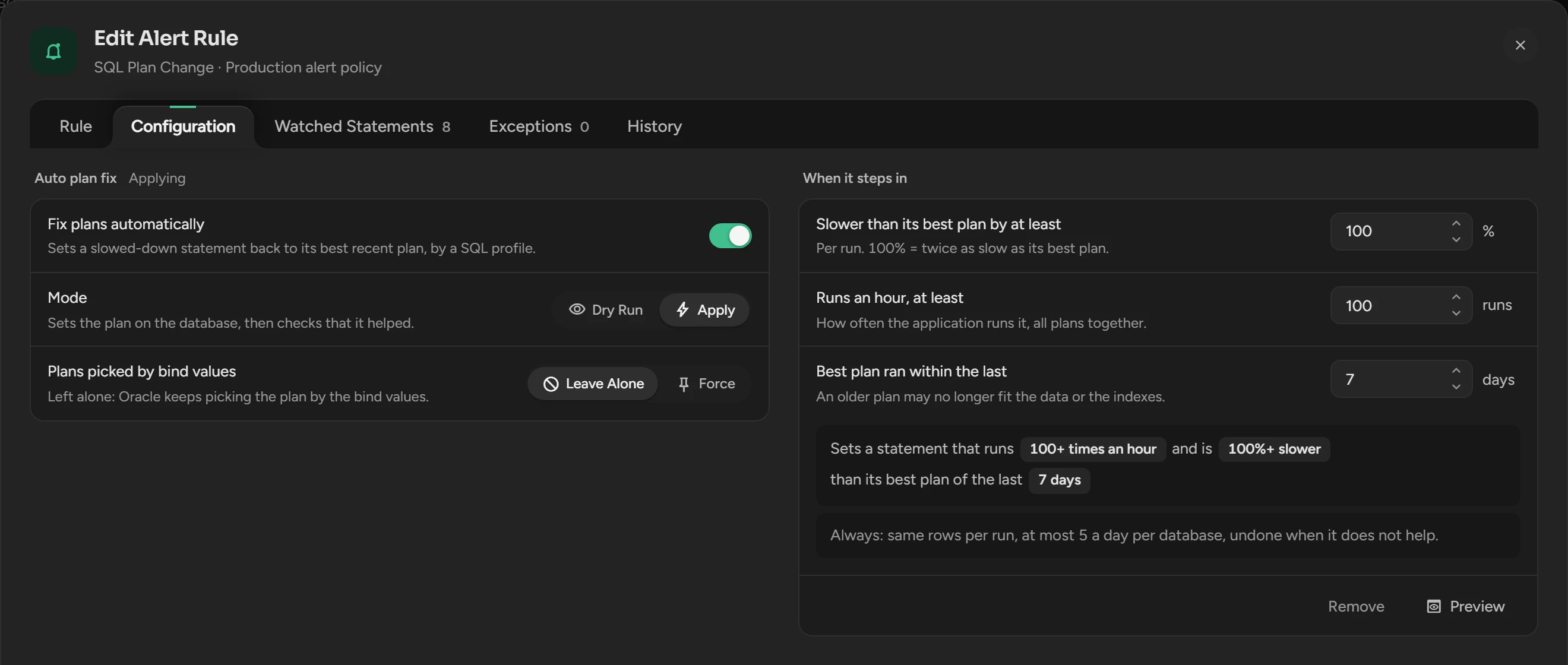
Switch on Fix plans automatically. Keep Mode on Dry Run.
Set the numbers. See Settings.
Click Save. For a few days, read the decisions on History and in the mails.
When the decisions are correct, set Mode to Apply, click Save and confirm.
In Apply, Scops sets plans without asking, and rolls back each fix that does not help.
Preview the decisions
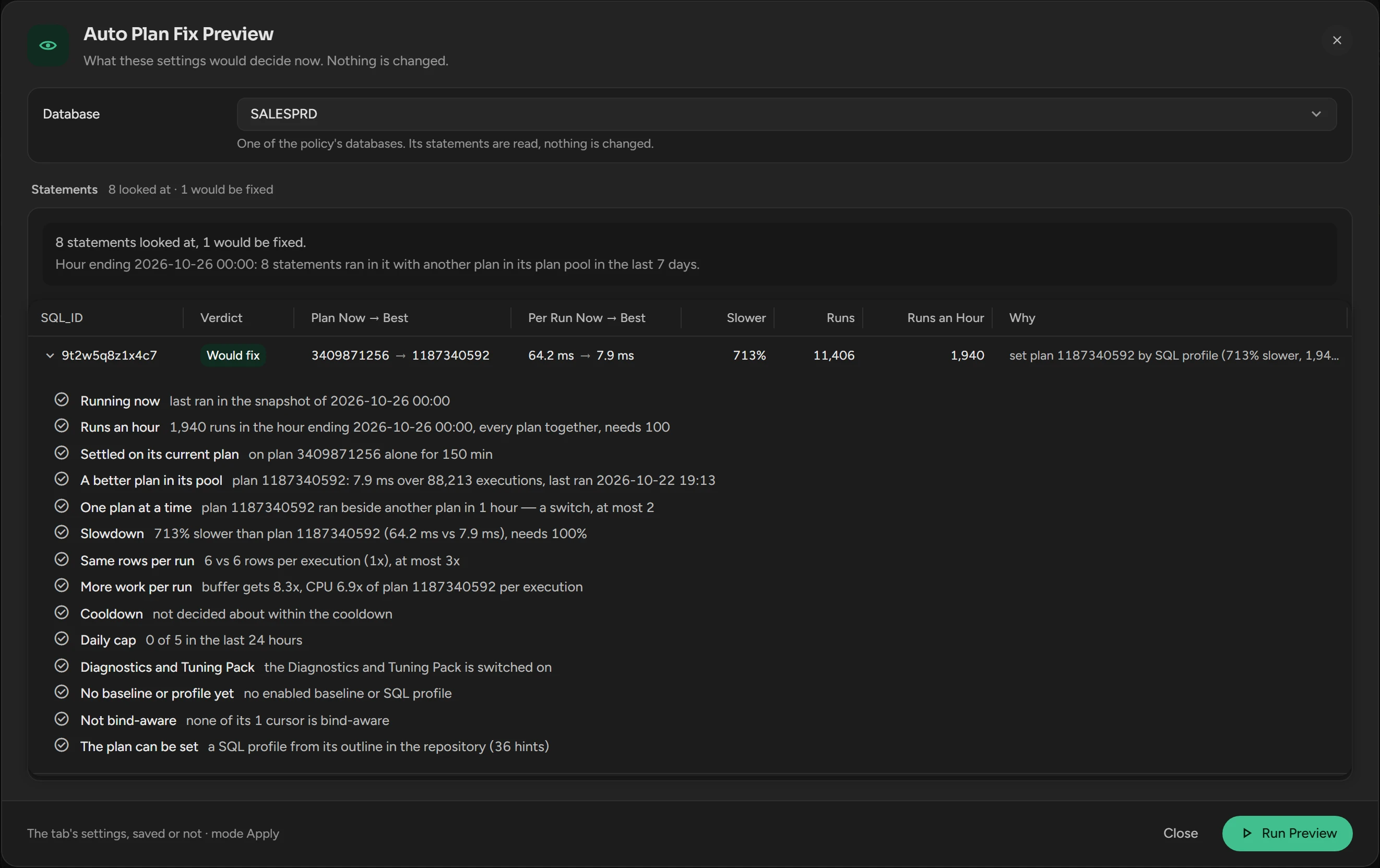
On Configuration, click Preview. It uses the settings on the screen, saved or not.
Select the Database and click Run Preview.
Open a statement to see each check with its numbers.
Each statement shows Would fix, Blocked (a check stopped it), Filtered (a setting refused it) or Skipped (out of scope or waiting).
Settings
| Setting | What it does | Default |
|---|---|---|
| Fix plans automatically | Off: Scops makes no new decisions. | Off |
| Mode | Dry Run records and mails each decision. Apply also sets the plan. | Dry Run |
| Plans picked by bind values | Leave Alone skips a statement whose plan depends on its bind values. Force gives it one best plan for all bind values. | Leave Alone |
| Slower than its best plan by at least | How much slower the current plan is for each run, from 10%. 100% is twice as slow. | 100% |
| Runs an hour, at least | Runs in the hour, all plans together. | 100 |
| Best plan ran within the last | How recent the best plan is, 1 to 14 days. | 7 days |
Scops also checks that both plans return about the same rows, and that the current plan does more work. It makes at most 5 decisions for each database in 24 hours, and never touches Oracle's own schemas.
To keep a statement out, give it an enabled SQL plan baseline or SQL profile.
Read the history
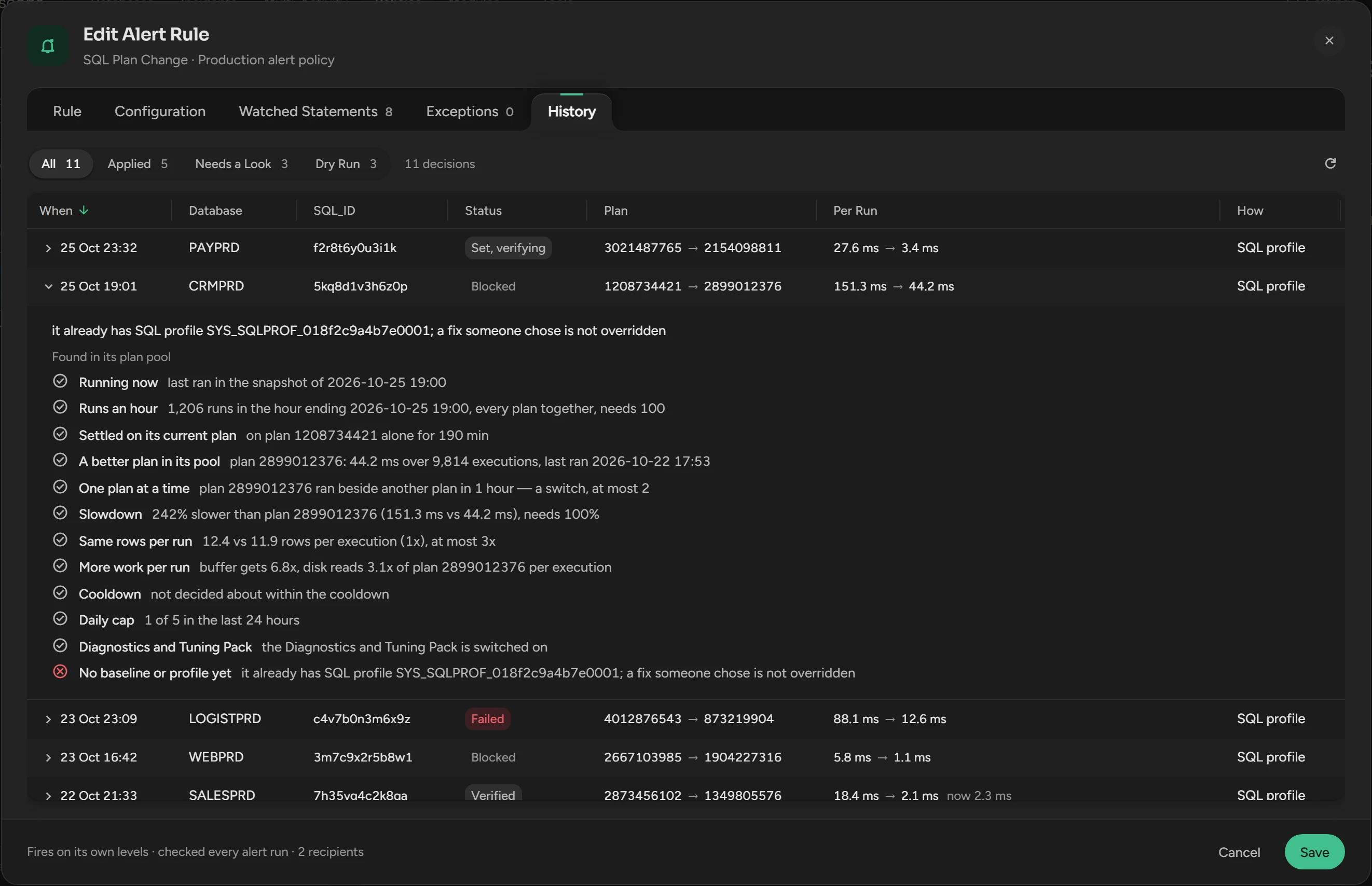
The History tab of the rule lists the newest 200 decisions. Open a row to see the reason and each check. The recipients of the rule also get each decision by mail.
| Status | What it means |
|---|---|
| Dry run | Scops would set the plan. |
| Being set | Scops sets the plan now. |
| Set, verifying | The SQL profile is in place. Scops waits for more runs. |
| Verified | In 10 runs or more, the statement closed half the gap to the best plan, or more. |
| Rolled back | The fix did not help. Scops dropped the SQL profile. |
| Unverified | Fewer than 10 runs in 24 hours. The fix stays. |
| Blocked | A check stopped it, for example the daily limit. |
| Failed | Oracle refused the profile. The row shows the error. |
| Rollback failed | Scops could not drop a fix that did not help. Undo it yourself. |
Watch a statement
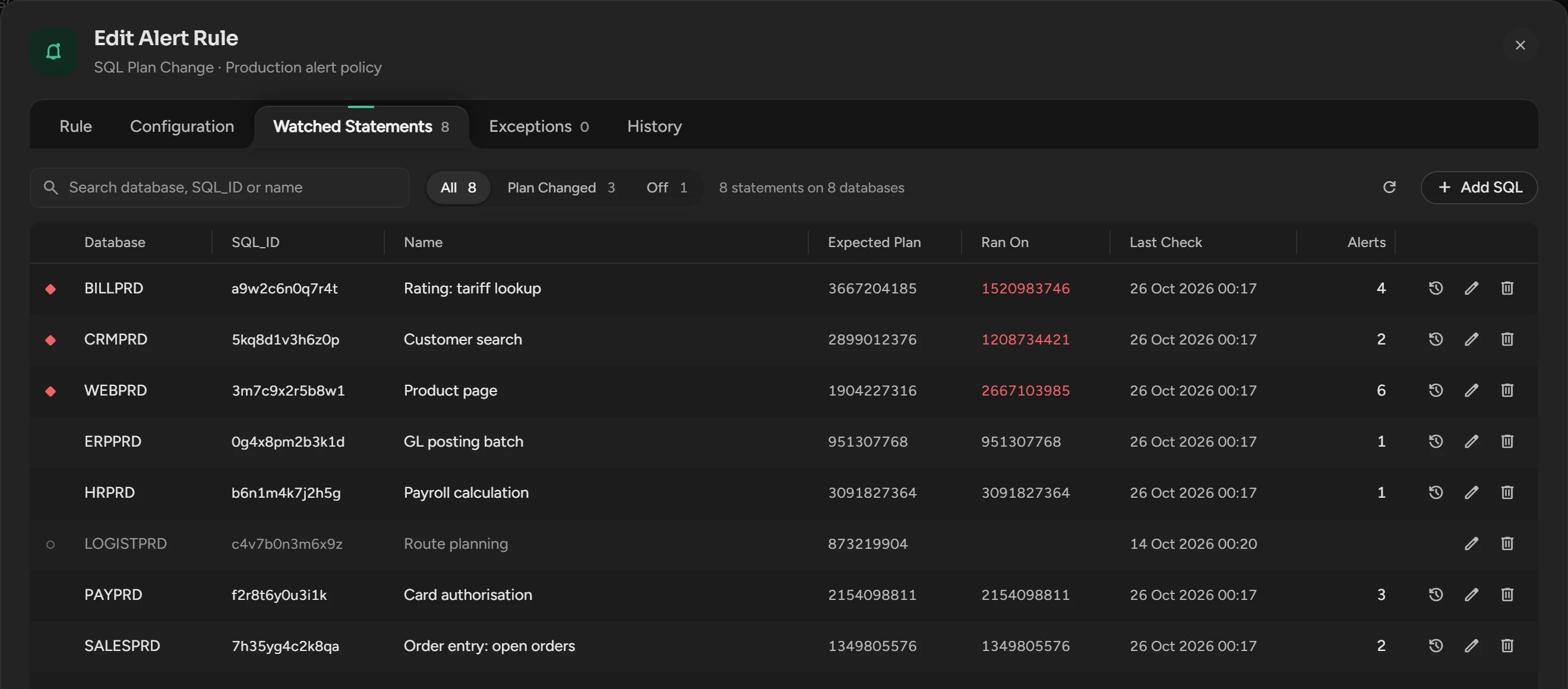
The SQL Plan Change alert also watches the statements that you give it. The plan fix does not need a watched statement.
In the rule, open Watched Statements and click Add SQL.
Enter the Database, the SQL_ID and the Expected plan hash value.
Click Watch Statement.
The alert fires when the statement runs on another plan. Ran On shows the plan of the last run.
Undo a fix
Open the SQL details of the statement and drop or disable its SQL profile. The name of the profile contains the SQL ID and the plan hash value.
Turn off automatic plan fix
Switch off Fix plans automatically and click Save. Scops makes no new decisions, but it still verifies the current fixes and rolls back the ones that do not help. Remove, under the settings, deletes the plan fix of the rule and keeps its history and fixes.
Related
Updated October 29, 2026