Find your way around
Use the top bar to move between the pages for all databases, and the database bar to move between the pages of one database.
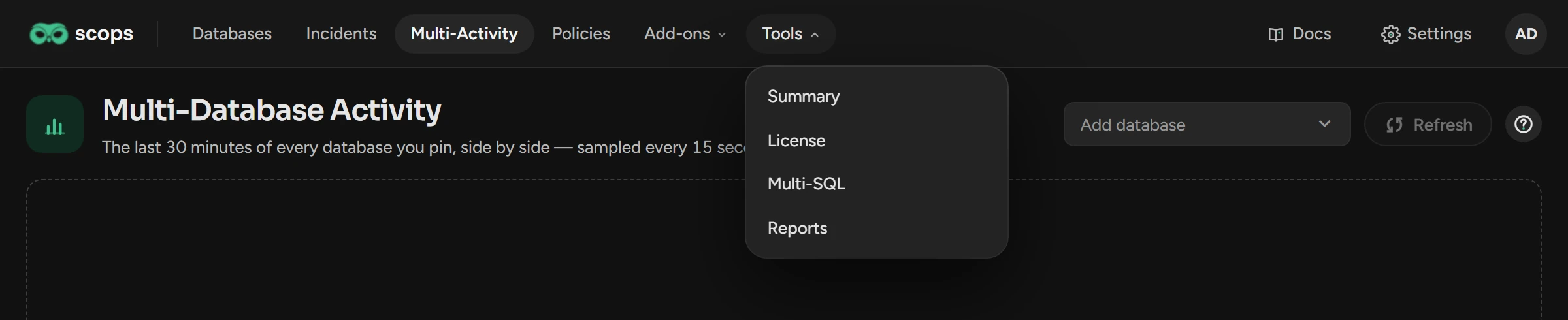
The top bar
| Item | What it opens |
|---|---|
| The Scops logo | Databases, from both bars. |
| Databases | All your databases. Scops opens here. |
| Incidents | The alerts and the Radar findings. |
| Multi-Activity | The last 30 minutes of the databases that you pin. |
| Policies | Alerts, reports, retention and monitoring for groups of databases. |
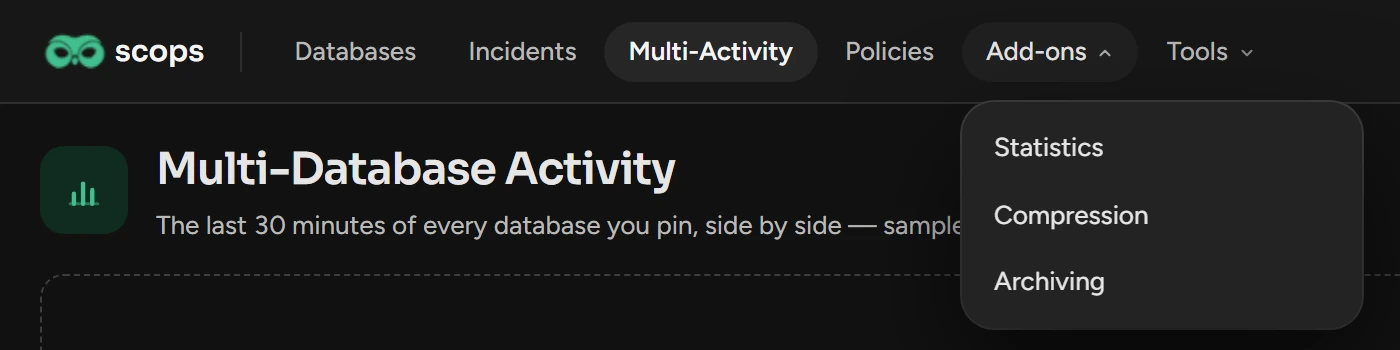
| Add-ons | Statistics, Compression and Archiving. |
| Tools | Summary, License, Multi-SQL and Reports. |
| Docs | These docs. |
| Settings | Users, mail, connections, AI, logs and all other settings. |
| Your initials | The account menu. |
You see only the items that your role allows. See Permissions.
The database bar
Click the name of a database on the Databases page. Its Dashboard opens in a new browser tab, with the database bar at the top.
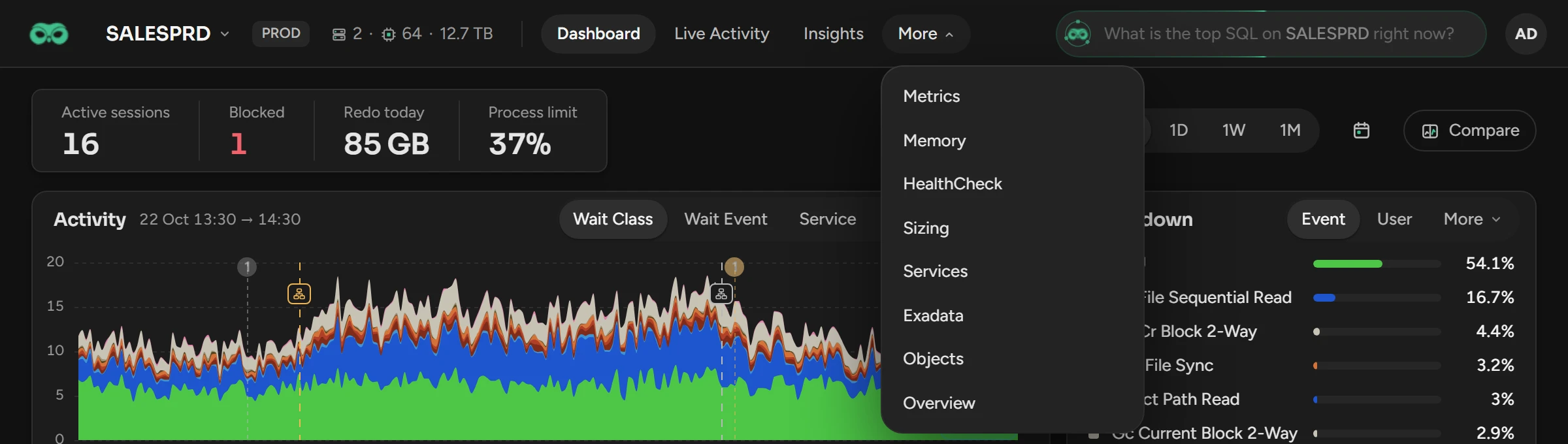
| Item | What it is |
|---|---|
| The database name | Opens the database switcher. |
| The environment | For example PROD or TEST. |
| Learning | On a new database only, for example "Learning · day 2 of 14". Click it to see what is ready and what comes next. It goes away after 14 days, or after 10 days if Radar is off for the database. |
| The figures | The nodes, the CPUs and the used space. Click them for the instance details. |
| The tabs | Dashboard, Live Activity, Insights, Metrics, Memory, HealthCheck, Sizing, Services, Overview, Exadata (only on Exadata) and Objects. The tabs that do not fit are under More. |
| The Ask field | A question for Scops AI. It shows after an administrator adds a model in Settings › AI. |
Switch to another database
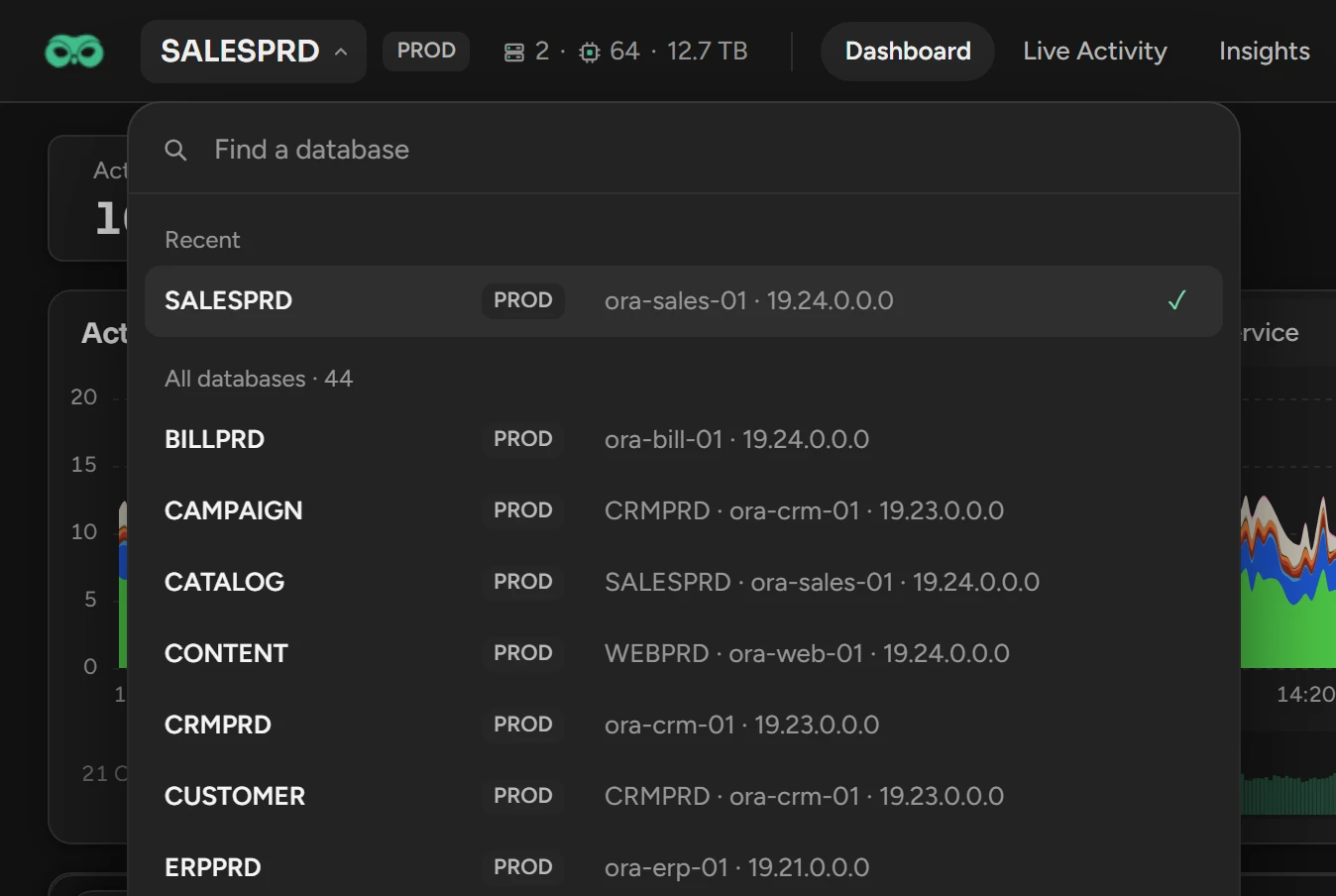
Click the database name in the bar.
Type part of a name in Find a database, or look under Recent or All databases.
Click the row. Scops opens the same page for the other database.
Ask about a database
Type a question in the field at the right of the database bar.
Press Enter. The chat window opens.
The field needs Use AI, and shows only when Scops AI is on.
Open the help for a page
Click the ? beside the page title, at the right of the tabs, or beside a Settings section. The docs page about that screen opens in a new tab. You need View Docs.
A * next to a field means that the field is required.
The account menu
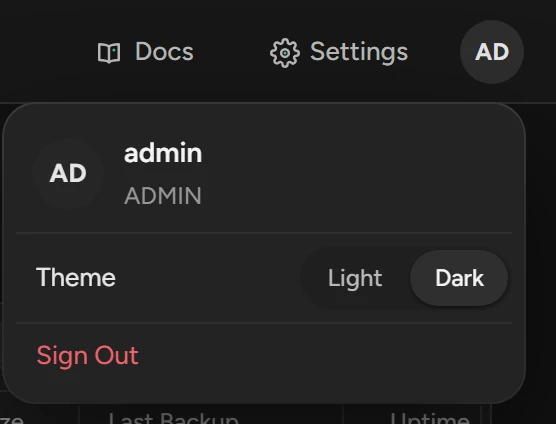
Click your initials at the right end of the bar to see your user name and role, change the Theme, or Sign Out.
Use the keyboard
| Where | Keys |
|---|---|
| Database switcher | Enter opens the first match. Esc closes it. |
| Ask field | Tab or → uses the suggested question. |
| Chat window, dialogs and panels | Esc closes the top one. |
| Settings | Type in Search settings to find a section. |
Related
Updated November 2, 2026