How Radar works
Set up Radar Engine, which checks each database every 5 minutes, and learn how it grades, explains and ends its findings.
Before you begin
- You need the Manage Radar permission to open Radar Settings.
- Radar is on for each new database. To set it off for many databases, use Monitoring.
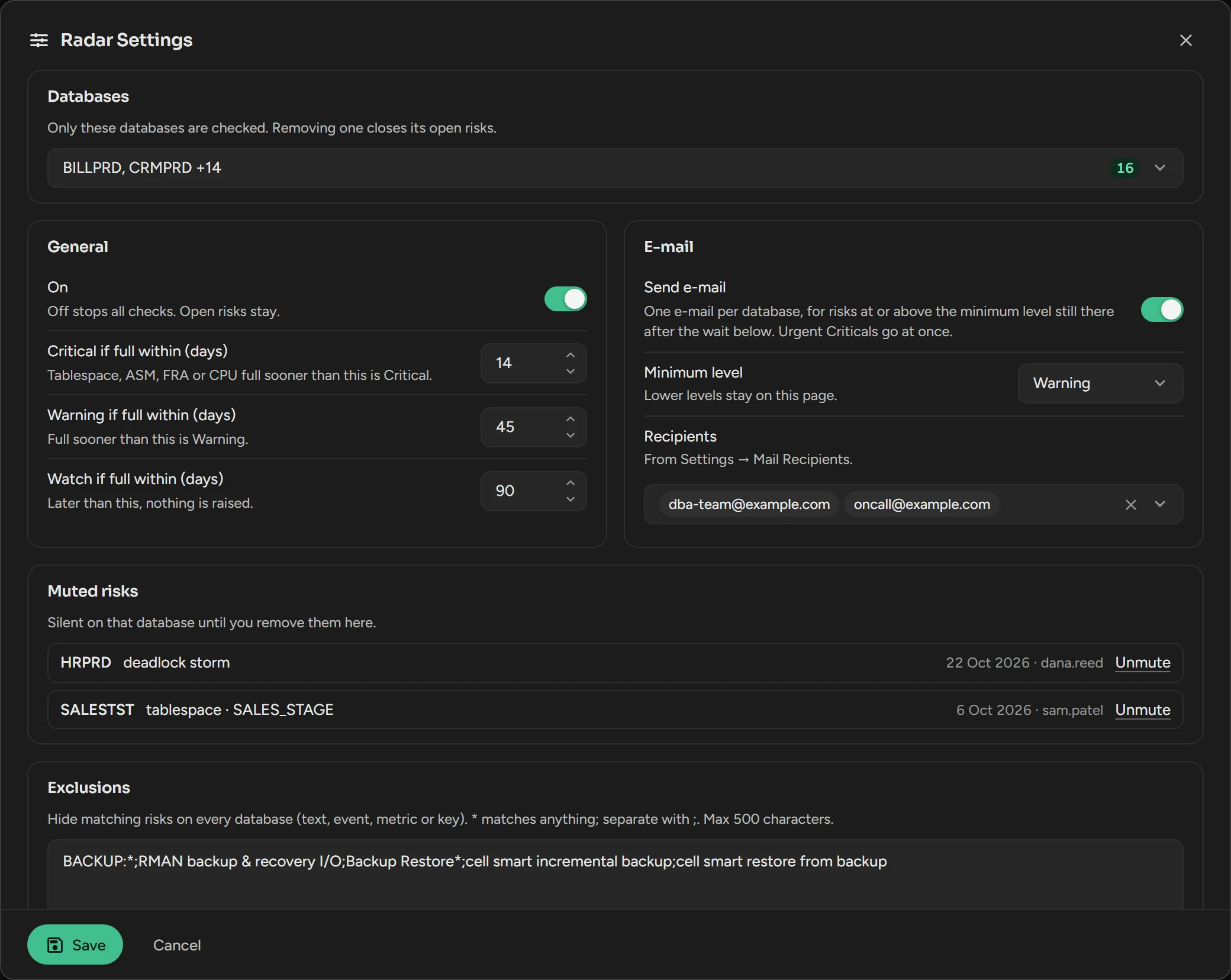
Set up Radar
Open Incidents in the top bar and select the Radar tab.
Click Settings at the top right.
Under Databases, check the list. Radar checks only these databases.
Under General, keep On set. If necessary, change the horizons.
Under E-mail, turn on Send e-mail, and select the Minimum level and the Recipients.
Click Save.
If you set On to off, or remove a database from the list, Radar ends the open findings as Ended · removed.
When Send e-mail is on, Radar sends one mail for each database at the end of the cycle. It mails a finding at or above the Minimum level (Critical by default) that is still there after Wait before e-mail (minutes).
- Urgent Critical findings, such as a blocking chain or a full TEMP, go at once.
- Radar mails an open finding again at most every Repeat every (hours), and at once when it becomes worse.
- After a user rates a finding a false alarm, Radar mails it on that database only at Critical for 30 days.
For the mail server, see Email and notifications.
Exclude findings on all databases
In Radar Settings, under Exclusions, type a pattern and click Add.
*matches any text. The case of letters is not important.Click Save.
A pattern must match a full text: a finding title (Account*), a wait event or metric (log file sync), or the name of an object. A pattern with | is a key (ops|pwd_expiry|*). Only a key hides a whole detector: Session* does not hide pulse|session_surge. Live findings have no title to match. Each pattern shows what it hides and what it hid in the last 30 days. To remove a pattern, click Remove, then Save. By default, the exclusions hide the RMAN and backup wait events.
Unmute a risk
In Radar Settings, find the risk under Muted risks and click Unmute. The database can raise the risk again.
Change the advanced settings
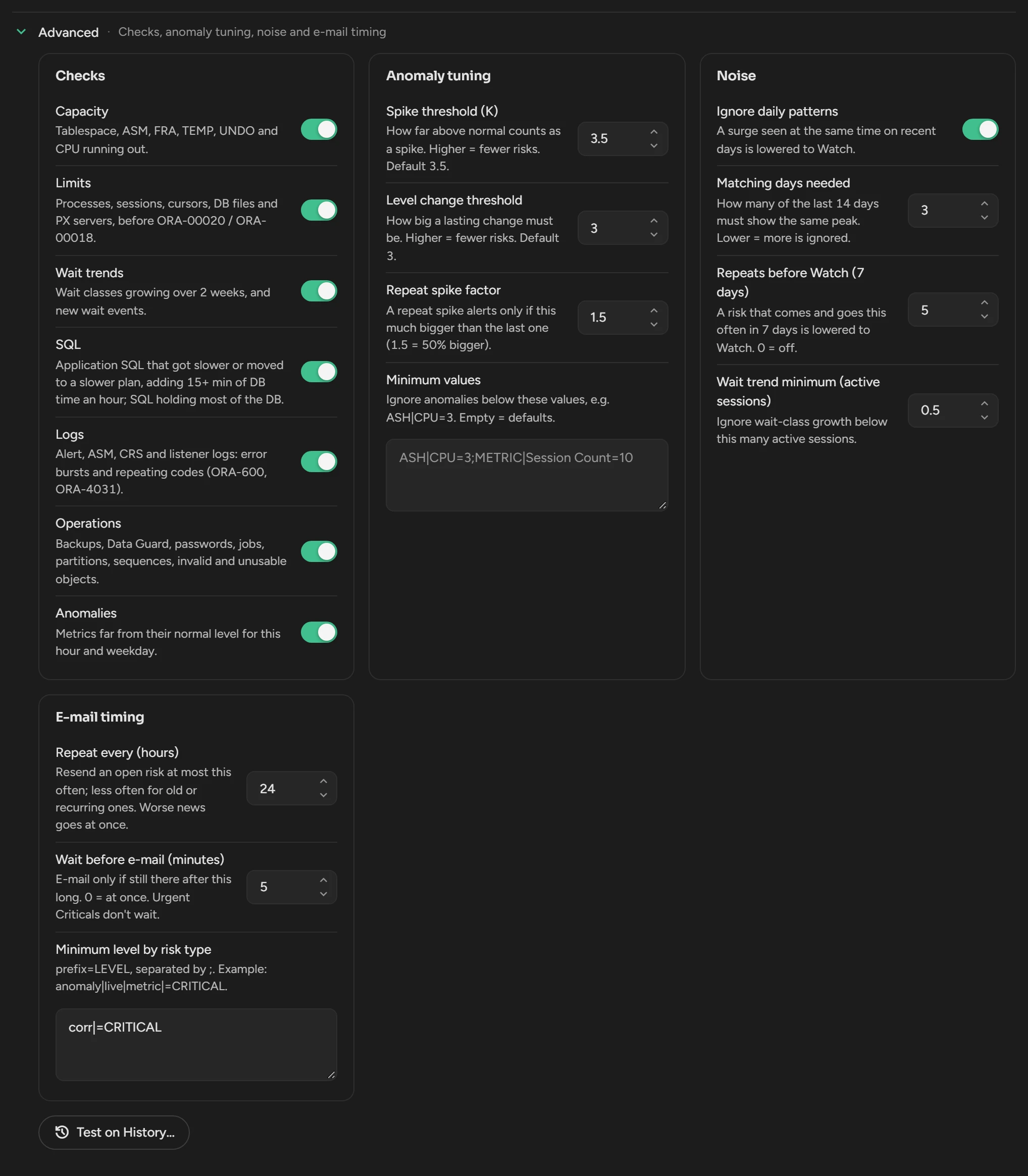
In Radar Settings, open Advanced. A higher threshold gives fewer findings.
| Setting | What it does | Default |
|---|---|---|
| Checks | Sets the hourly and daily detectors of each category on or off. | All on |
| Spike threshold (K) | How far above the usual band a spike must be. | 3.5 |
| Level change threshold | How large a lasting change must be. | 3 |
| Repeat spike factor | How much larger a repeat spike must be. | 1.5 |
| Minimum values | Radar ignores anomalies below these values. | Empty |
| Ignore daily patterns | Lowers to Watch a surge at the same time on recent days, and a finding that was there at this hour on 2 of the last 7 days. | On |
| Matching days needed | The days of the last 14 that must show the same peak. | 3 |
| Repeats before Watch (7 days) | Lowers to Watch a risk that comes and goes this often. 0 also stops lowering a risk seen on 4 of the last 7 days. | 5 |
| Wait trend minimum (active sessions) | Radar ignores new wait events below this value. | 0.5 |
| Repeat every (hours) | The shortest time between two mails of one finding. | 24 |
| Wait before e-mail (minutes) | Radar mails a finding only if it is still there after this time. | 5 |
| Minimum level by risk type | Mail levels by key, as prefix=LEVEL. See Use the keys. | corr|=CRITICAL;pulse|event|=CRITICAL;pulse|load_surge=CRITICAL;pulse|deadlock_storm=CRITICAL. corr| has no effect. The other three are Warning at most, so they are not mailed. If you saved the Radar settings before this version, Radar keeps the levels that you saved. |
Test the settings on history
In Advanced, click Test on History.
Select the Database and the Days (3 to 30).
Click Run Test, or Compare K to try spike thresholds from 2.5 to 5.
The test runs all checks but Operations, with the settings in the dialog, also unsaved ones. It saves and sends nothing.
Check that Radar runs
On the Radar tab, the chip next to the views shows Running · 4m ago. When there is a problem, it is red:
| Chip | Meaning |
|---|---|
| Analysis late | No cycle finished for one hour. Check the Radar job in Settings › Jobs. |
| Job not registered | The Radar job is not in Settings › Jobs. |
| Mail failing | Radar could not send mail. It tries again in the next cycle. |
| N unchecked | Databases that no cycle checked for one hour or more. |
Runs lists each cycle of each database, with a trace. After a restart of Scops, the first cycle starts in 10 minutes.
The Radar cycle
Radar uses statistics and rules, not an AI model.
Severity
| Severity | Means | Forecast horizon (default) |
|---|---|---|
| Critical | Act now: an outage or a failure occurs or is very near. | Full within 14 days |
| Warning | Act soon: it causes problems now or within days. Not mailed by default: set Minimum level to Warning to get a mail. | Full within 45 days |
| Watch | For your information. Not mailed by default. Info on the Dashboard. | Full within 90 days |
To change the horizons, set Critical if full within (days), Warning if full within (days) and Watch if full within (days) under General. They apply to tablespaces, ASM, datafile space, PDB storage and CPU. The FRA, processes, sessions, db_files and quotas use fixed horizons of 2, 7 and 21 days.
Now and forecast
- Now
- A problem that occurs now, such as 14 blocked sessions. The finding ends when the problem stops.
- Forecast
- A resource that becomes full at the current rate. The ETA is the date when it is full. A tablespace gets a forecast after three days of hourly readings.
How Radar decides a finding is real
- Radar learns the usual level of each hour, for weekdays and weekends apart. It needs about 10 days of history for weekdays and three weeks for weekends.
- For the live activity, Radar also learns the usual of each 5 minutes, and what the activity reaches around this time on most days and on the same weekday. See What usual means.
- If a finding was there at the same hour on two of the last seven days, on four of the last seven days at any hour, or came and went often, it becomes Watch. Its title says which, for example usual at this hour. An episode 1.5 times larger, or twice as long, as the earlier ones keeps its level.
- A Critical finding needs a harm that Radar measures. A load or a share of one wait event alone is never Critical. See When Radar sends a mail.
- A live finding becomes Critical only after two cycles in a row. The first time, it is Warning.
- A severity goes down only after two cycles at the lower level.
- Only the SQL of your applications raises a SQL finding.
Causes
| Cause grade | What it means |
|---|---|
| Named | One statement, module, job or session causes most of the increase, and something changed for it. |
| Top contributor | One item causes most of the increase, with no recorded change. |
| Shared resource | One instance or one wait is the cause. |
| Usual load | This load is usual for this hour. |
| Not measured | The data to find the cause was missing. |
| Not found | Nothing explains the increase. |
Space forecasts and operational findings have no cause.
How findings end and come back
| Reason | Why |
|---|---|
| Ended | The condition stopped. |
| Ended · no data | No reading for two days. |
| Ended · removed | The database left the scope of Radar, or its check or Radar was set to off. |
| Ended · Scops restart | Scops restarted while a live finding was open. This is not a recovery. |
| Ended · muted | A user muted it. |
An ended finding keeps the highest severity that it reached. Scops keeps a finding for 30 days from when Radar raised it, then deletes it. A finding that is still open stays while it is open.
A finding that comes back within 70 minutes continues the same episode. If the condition comes back within seven days after Ended · no data or Ended · removed, or within one hour after Ended · Scops restart, the finding keeps its acknowledgement and snooze.
What Radar costs your databases
| How often | What Radar reads | From |
|---|---|---|
| Each cycle | Session samples, metrics, SQL statistics, OS logs and alerts | The cache and the repository only |
| Each hour | Space, limits, parallel servers, Data Guard, backups, the largest open transaction | About eight short queries |
| Each day | Unusable indexes, partitions, invalid objects, password expiry, sequences, scheduler jobs | Dictionary scans, 3 minutes at most each |
A scan that reaches its limit two times in a day stops until the next day. A physical standby does not scan when Radar also checks its primary.
Related
Updated November 10, 2026