LDAP
Let users sign in with their directory account, and give roles to directory groups.
Before you begin
- You need Manage Settings. Group mappings and Check a user also need Manage users.
- The Scops server must reach the directory on port 389 (LDAP) or 636 (LDAPS).
- Check a user and Browse need a read-only service account.
Connect the directory
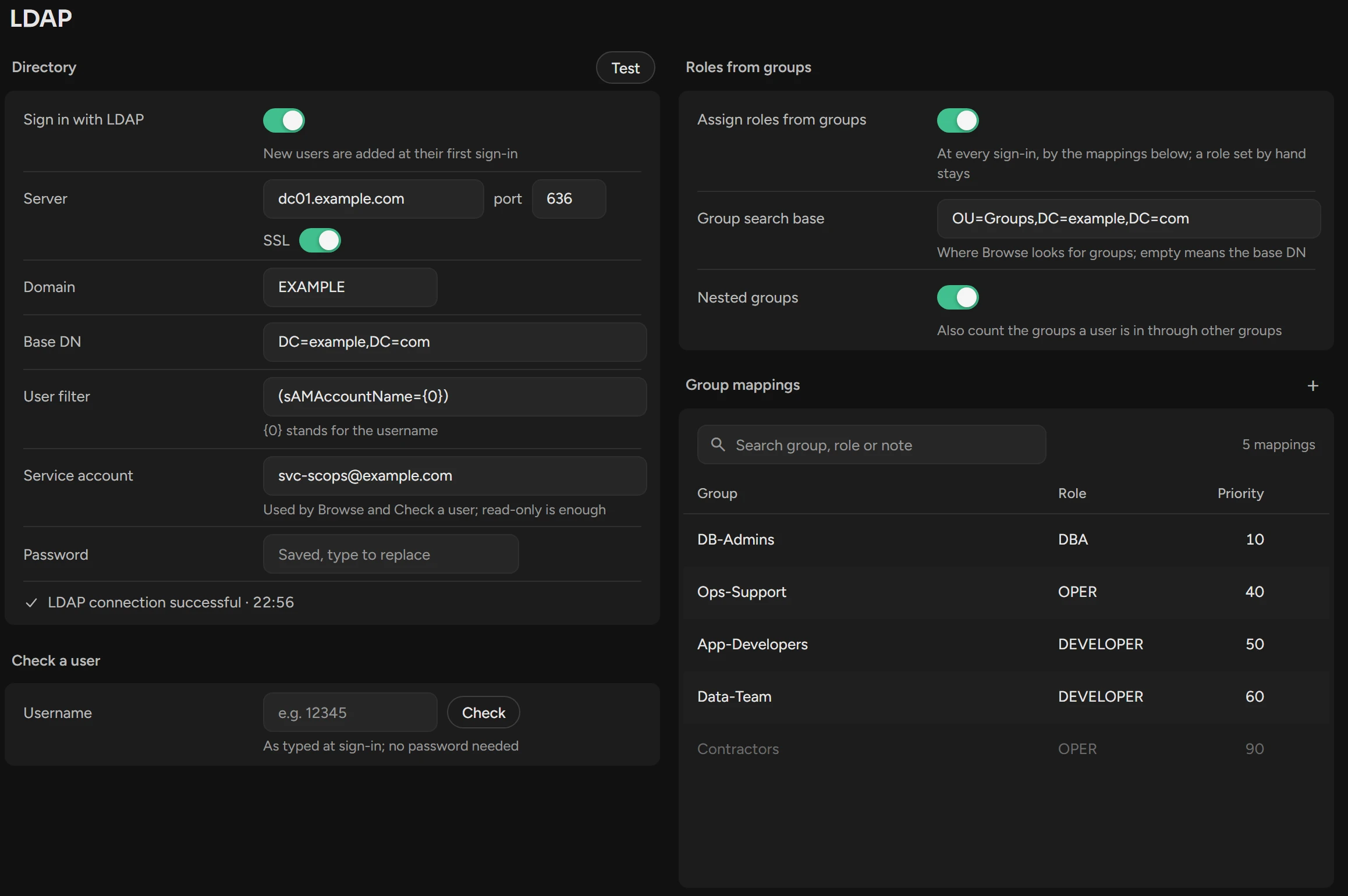
Turn on Sign in with LDAP and fill in the fields below.
Click Test. The line under the group shows "LDAP connection successful" or the error.
Click Save.
| Field | What to enter |
|---|---|
| Server, port, SSL | The directory server. For LDAPS, turn on SSL. |
| Domain | For Active Directory. Scops signs in as username@domain. |
| Base DN | Where Scops looks for users, for example DC=example,DC=com. Without a Domain, Scops signs in as uid=username in the base DN. |
| User filter | {0} is the username. Active Directory: (sAMAccountName={0}). OpenLDAP: (uid={0}). |
| Service account, Password | The read-only account for Browse and Check a user. |
Users with Sign in with LDAP on in Security sign in with their directory password. If you turn LDAP off, they cannot sign in.
Map groups to roles
Under Roles from groups, turn on Assign roles from groups and click Save.
Under Group mappings, click +.
Type the LDAP group, or click Browse to find it. Select the Role.
Set the Priority. For a user in more than one mapped group, the lowest number wins. The default is 100.
Click Add Mapping.
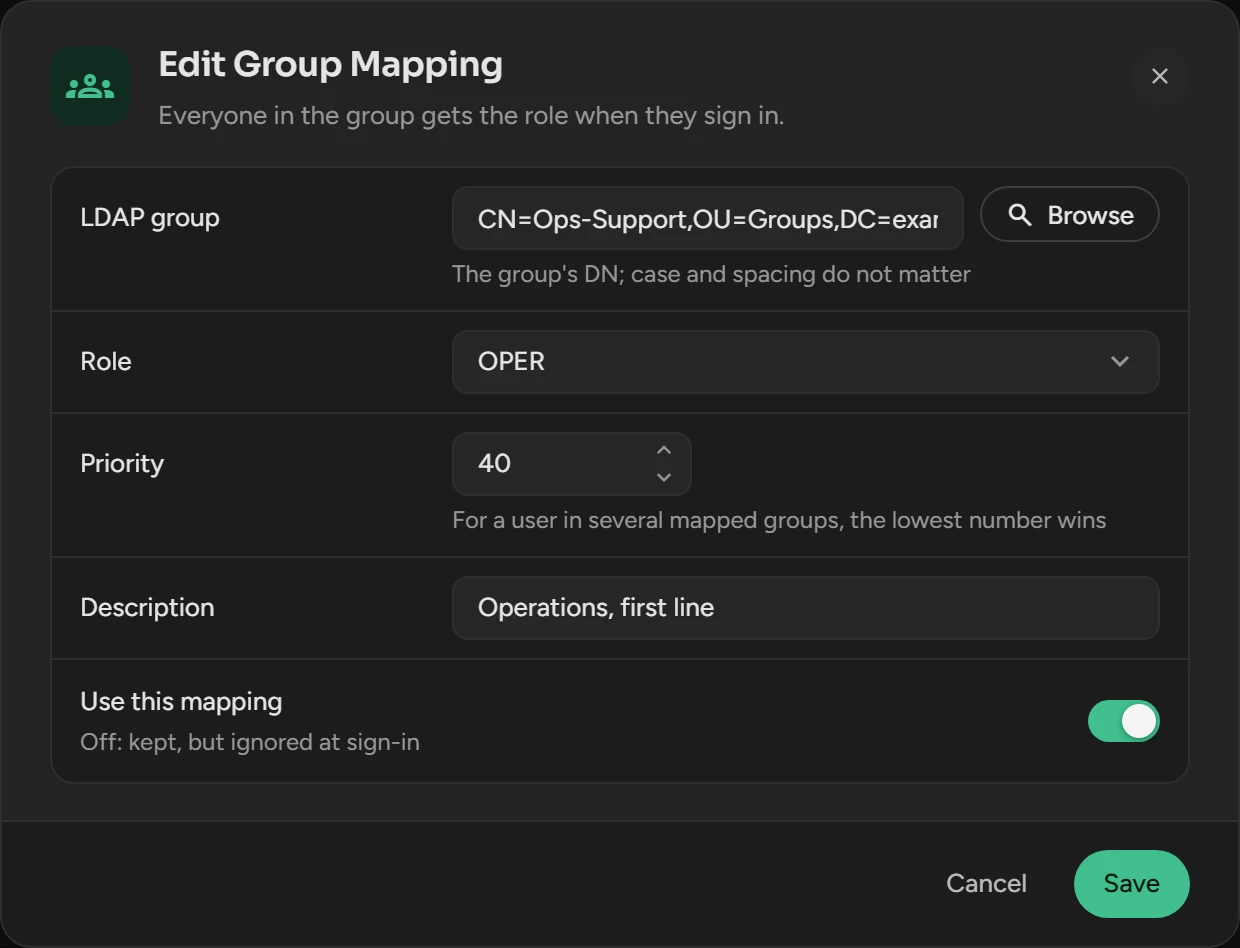
Scops sets the role at each sign-in, but not a role that an administrator set by hand. Nested groups, on by default, also counts the groups inside groups. A user who leaves all mapped groups gets READONLY at the next sign-in, and cannot sign in.
Check a user
Under Check a user, type the Username. No password is necessary.
Click Check. Scops shows the groups of the account and the role that a sign-in gives now.
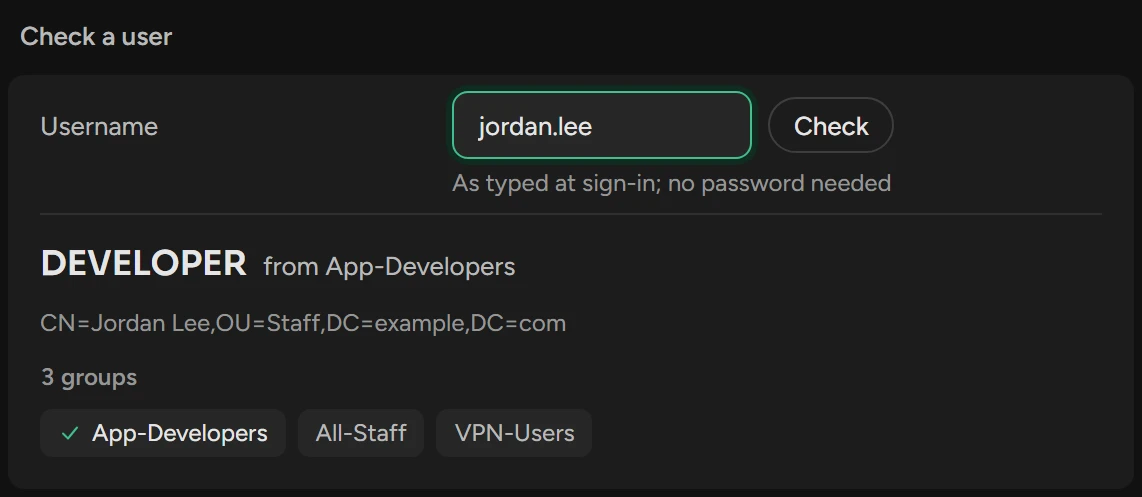
A failed sign-in always shows "Invalid username or password". The Sign-in category of Logs shows the real reason.
Related
Updated October 29, 2026