Import and export
Move database definitions from one Scops server to another: how to reach each database and where it belongs.
Before you begin
- You need Manage Settings and Manage databases. To export passwords, you also need Manage credentials.
- An import stops at the database limit of your edition.
Export databases
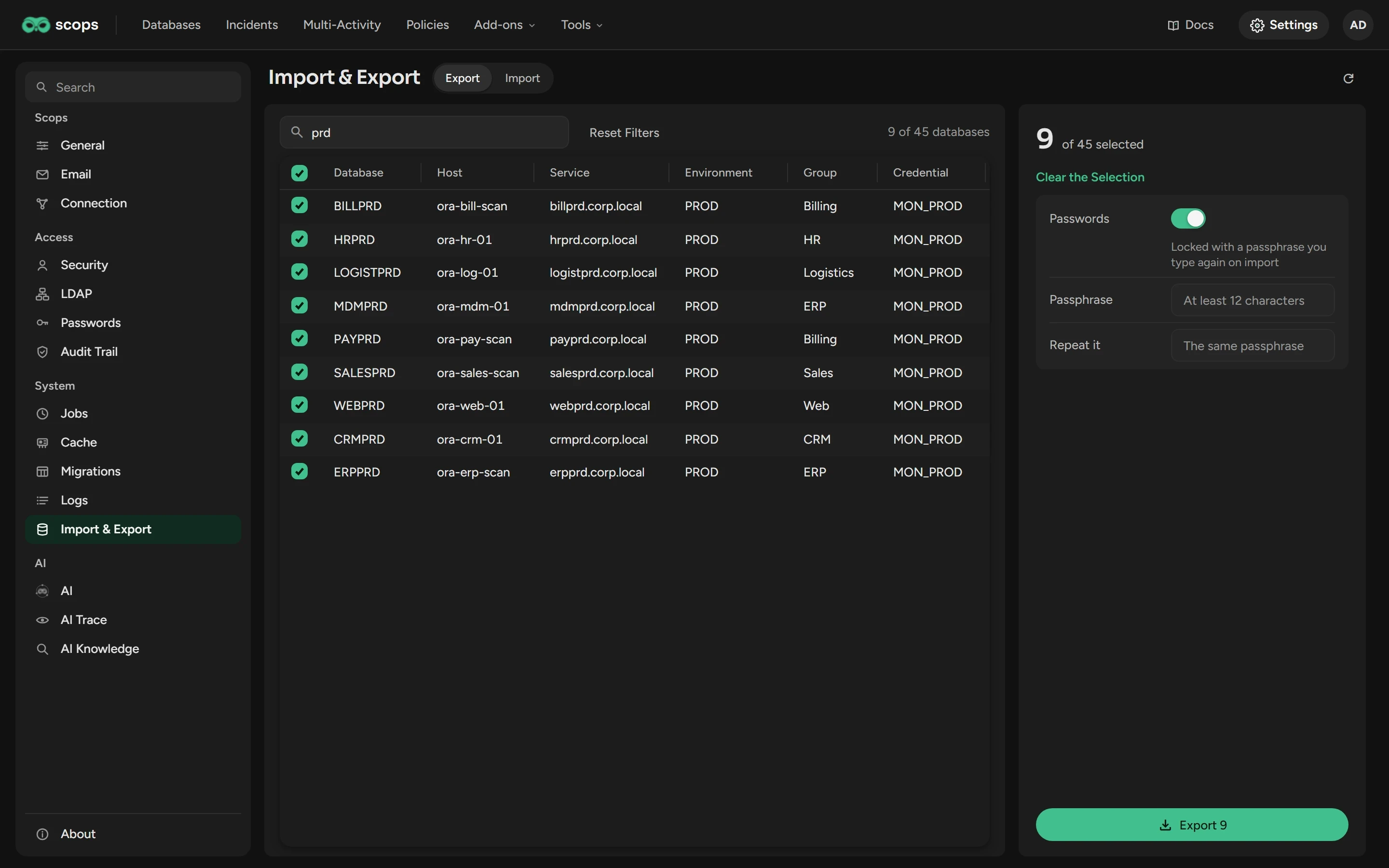
On the old server, open Settings › Import & Export and select the databases.
To include the passwords, turn on Passwords and type a passphrase of 12 characters or more two times. Keep it for the import.
Click Export n. Your browser saves a JSON file.
The file has the addresses of your databases and the user names that Scops signs in with. Keep it safe, also without passwords.
What the file holds
| In the file | Not in the file |
|---|---|
| The connection of each database: host, port, service name, DBID, name and role | The data that Scops collected |
| The names of its environment, group, owner, policies and credential | The contents of the policies |
| Its display name, notes, and Ask Scops and Cache switches | The Diagnostics and Tuning Pack and Radar switches |
| The credentials, and their passwords only with Passwords on | OS log settings, and the settings of Statistics, Compression and Archiving |
Import databases
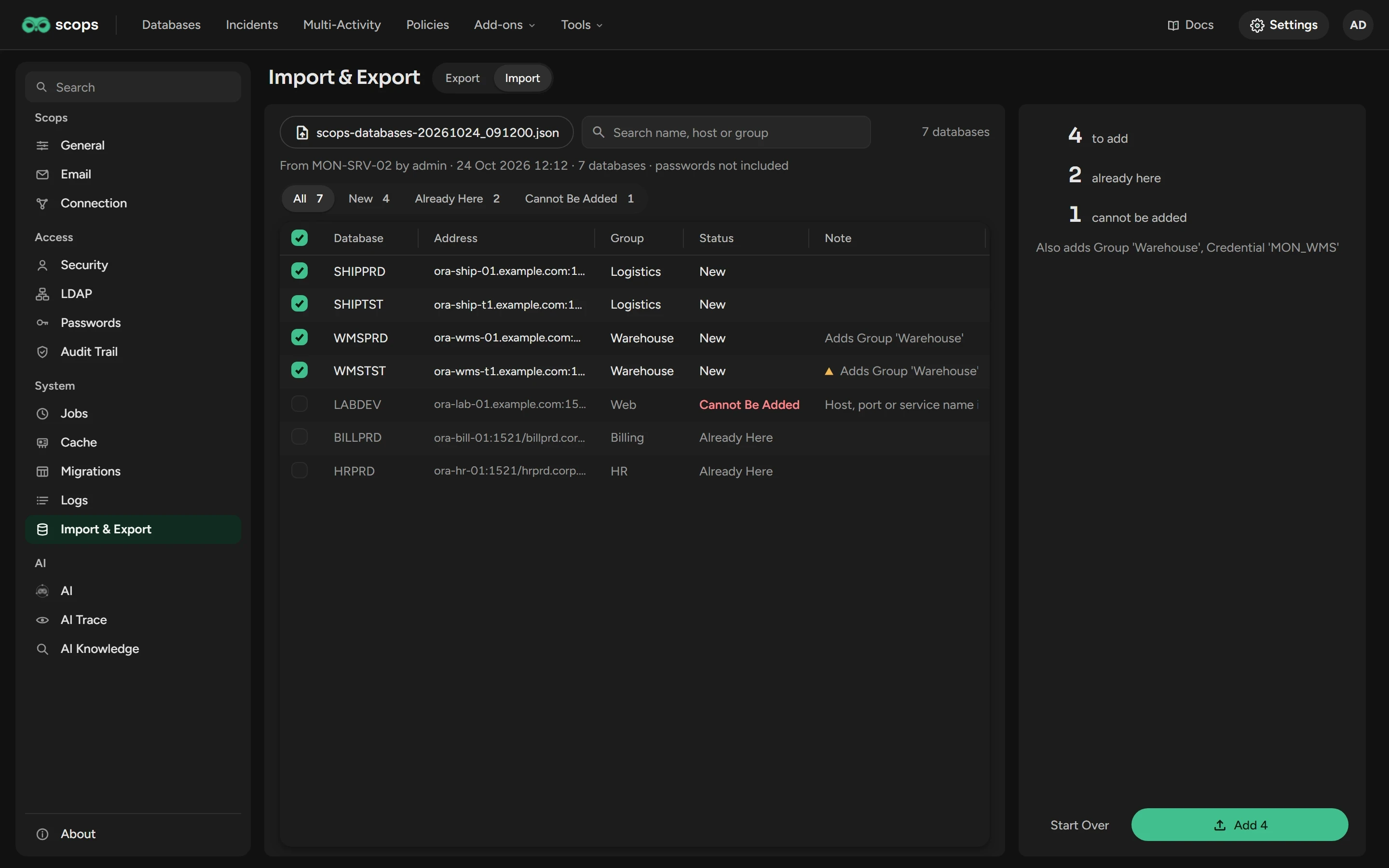
On the new server, open Settings › Import & Export and click Import.
Click Choose a file and select the file. If it has passwords, type the passphrase and click Read.
Check the Status of each database. Clear the databases that you do not want.
Click Add n, then Done.
| Status | Meaning |
|---|---|
| New | Not on this server. Scops selects it. |
| Already Here | This server has it, with the same DBID and role, or the same host, port and service. Scops does not change it. |
| Cannot Be Added | Its host, port or service name is missing. |
Finish an import
Scops adds the databases as offline, with no connection test. It checks each one every 5 minutes, and a database becomes online when Scops can reach it.
Set the password of each new credential that has none, in Settings › Security › Credentials.
Set up each new policy in Policies. Scops creates a missing policy empty.
Where you need them, turn on Diagnostics and Tuning Pack in Edit Database, and Radar in Policies › Monitoring.
Move to a new server
Install Scops on the new server.
On the old server, export all databases with Passwords on.
On the new server, import the file and finish the import.
Set up again what the file does not hold. See What the file holds.
Related
Updated October 29, 2026