Alert policies
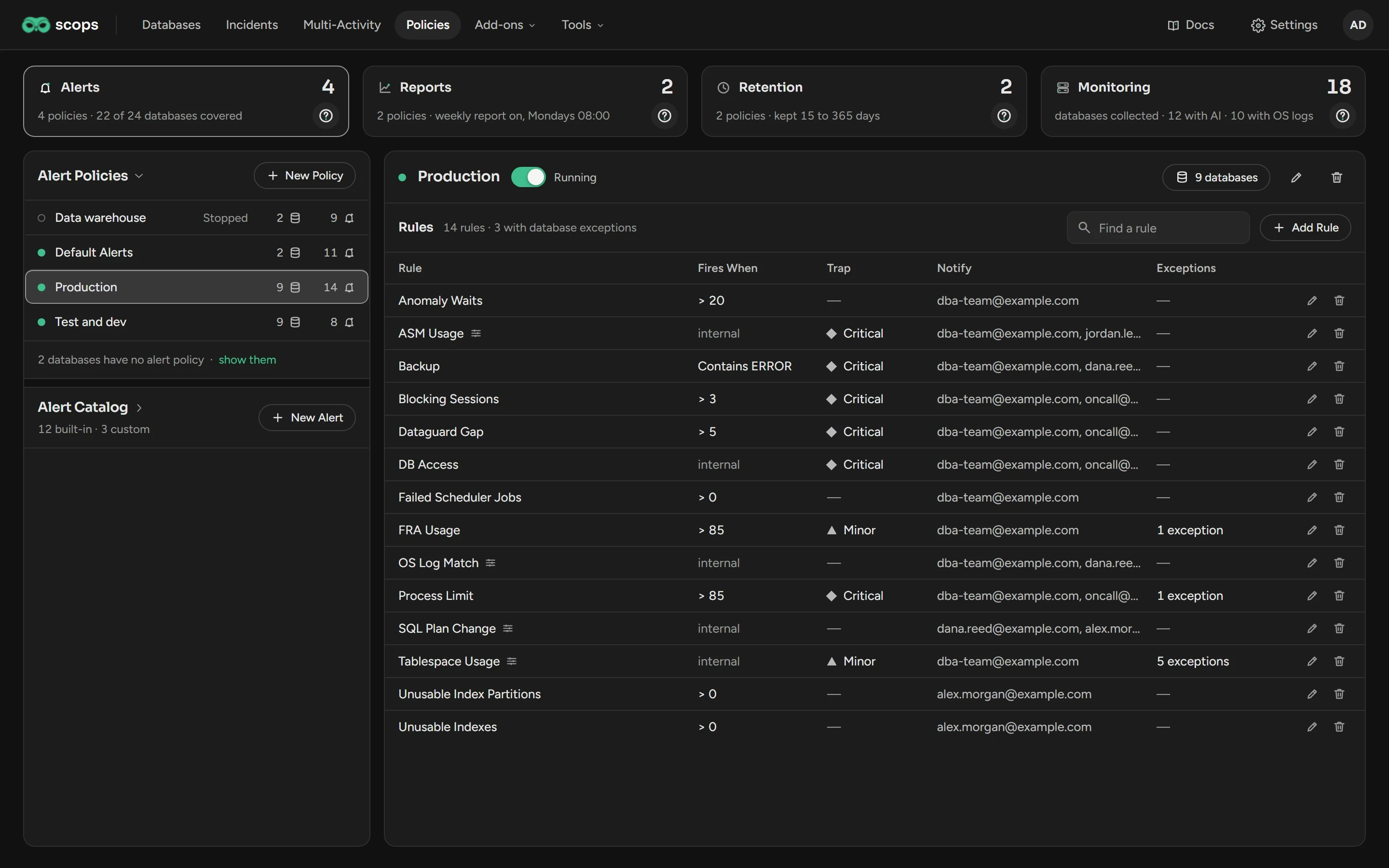
An alert policy sets which alerts check a group of databases, when they fire and who gets the mail. Open Policies › Alerts.
Before you begin
- Rules, exceptions and policies need Manage Policies. Your own alerts need Manage alerts.
- Mail and traps use Settings › Email. See Email and notifications.
Add a rule
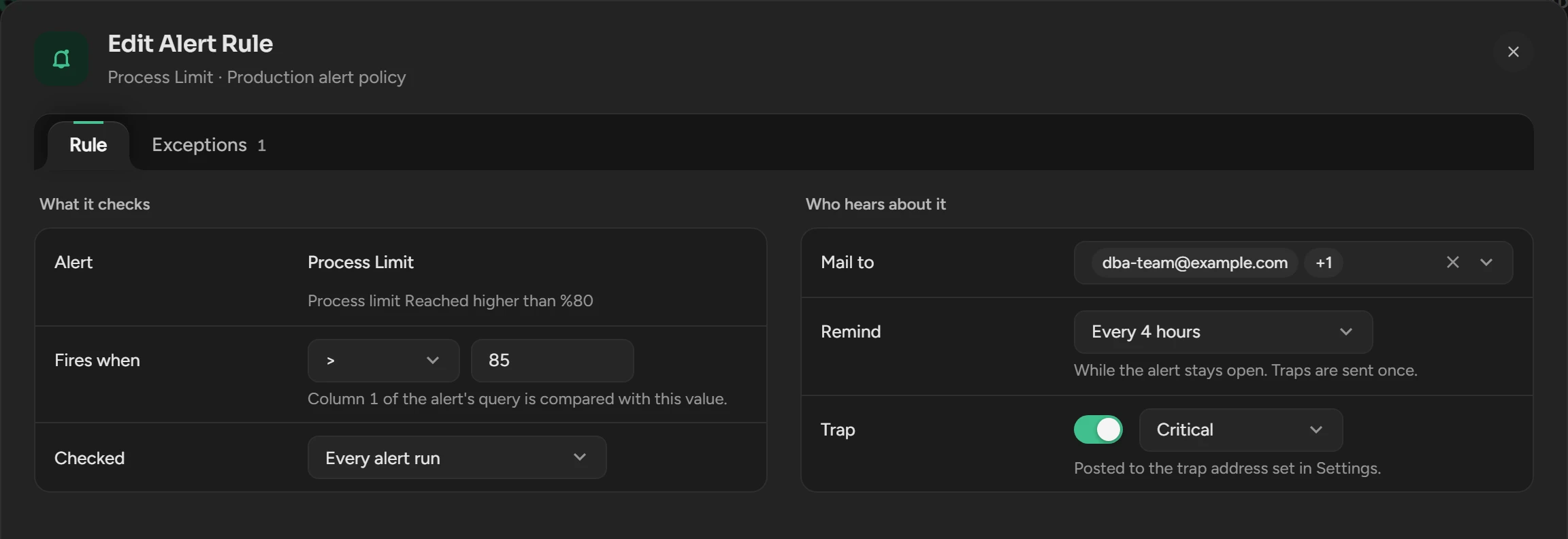
Click the policy in the list.
Click Add Rule.
In Alert, select an alert from the Alert Catalog. If the alert is not in the list, click New Alert at the bottom of the list.
Set the fields in the table below.
Click Add Rule.
| Field | What it does | Choices |
|---|---|---|
| Fires when | Compares column 1 of the alert with this value. Contains is case-sensitive. | <, >, =, Contains |
| Checked | How often the rule runs. | Every 5 minutes (the default) up to Every hour |
| Mail to | Who gets the mail. | No one, or recipients from Settings › Email |
| Remind | Sends the mail again while the alert is open. | Never (the default) up to every week |
| Trap | Also sends the alert as a trap. | Off, Critical, Minor |
To change a rule, click its pencil. To remove it from the policy, click its bin.
Set the levels of an alert with its own settings
Four alerts show own levels in Fires When. Set their levels on the Configuration tab of the rule. The settings apply to this policy only.
| Alert | What you set |
|---|---|
| Tablespace Usage | The tablespace types, Free space below (GB) and Used above (%). Also the automatic datafile add. |
| ASM Usage | Usable space below (GB) and Used above (%). |
| OS Log Match | The codes to Include and Exclude, the Logs, the Severity and the Look back minutes. The database needs OS logs on Monitoring. |
| SQL Plan Change | The Watched Statements and the automatic plan fix. |
When both levels are on, an item must cross both. Delete under Saved settings sets the defaults again.
Add an exception
An exception changes a rule for some databases or items. You do not need another policy.
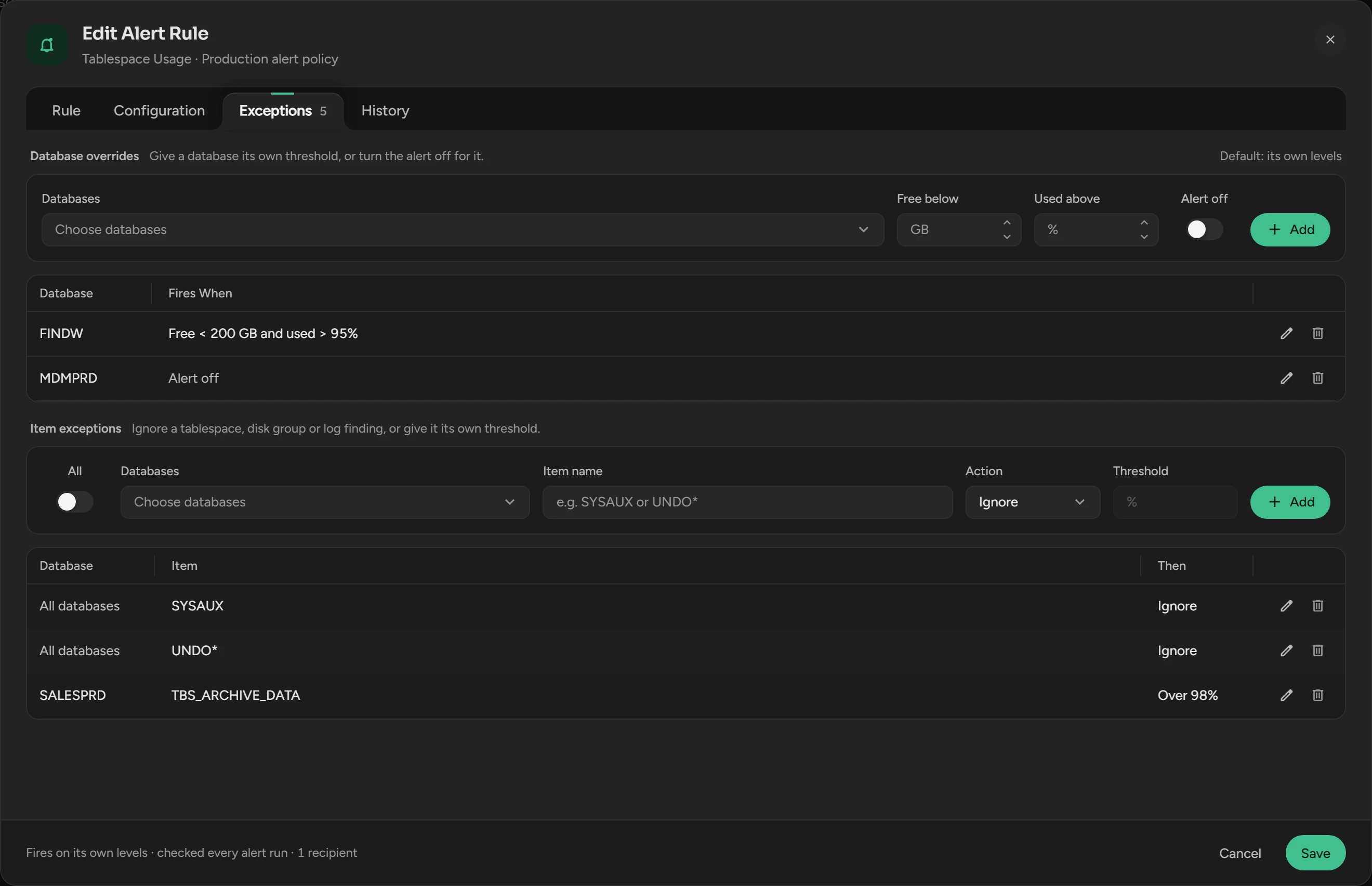
Click the number in the Exceptions column of the rule, or open the rule and click Exceptions.
For other levels on some databases: under Databases, select them. Set the Operator and the Value, or turn on Alert off. Click Add.
For one item, such as a tablespace: type the Item name (
UNDO*matches all names that start with UNDO). Select Ignore or Own threshold. Click Add.
Scops saves each change at once. All applies an item exception to all databases of the policy, also to databases that you add later.
Create your own alert
Write a query one time, then add it to policies as a rule.
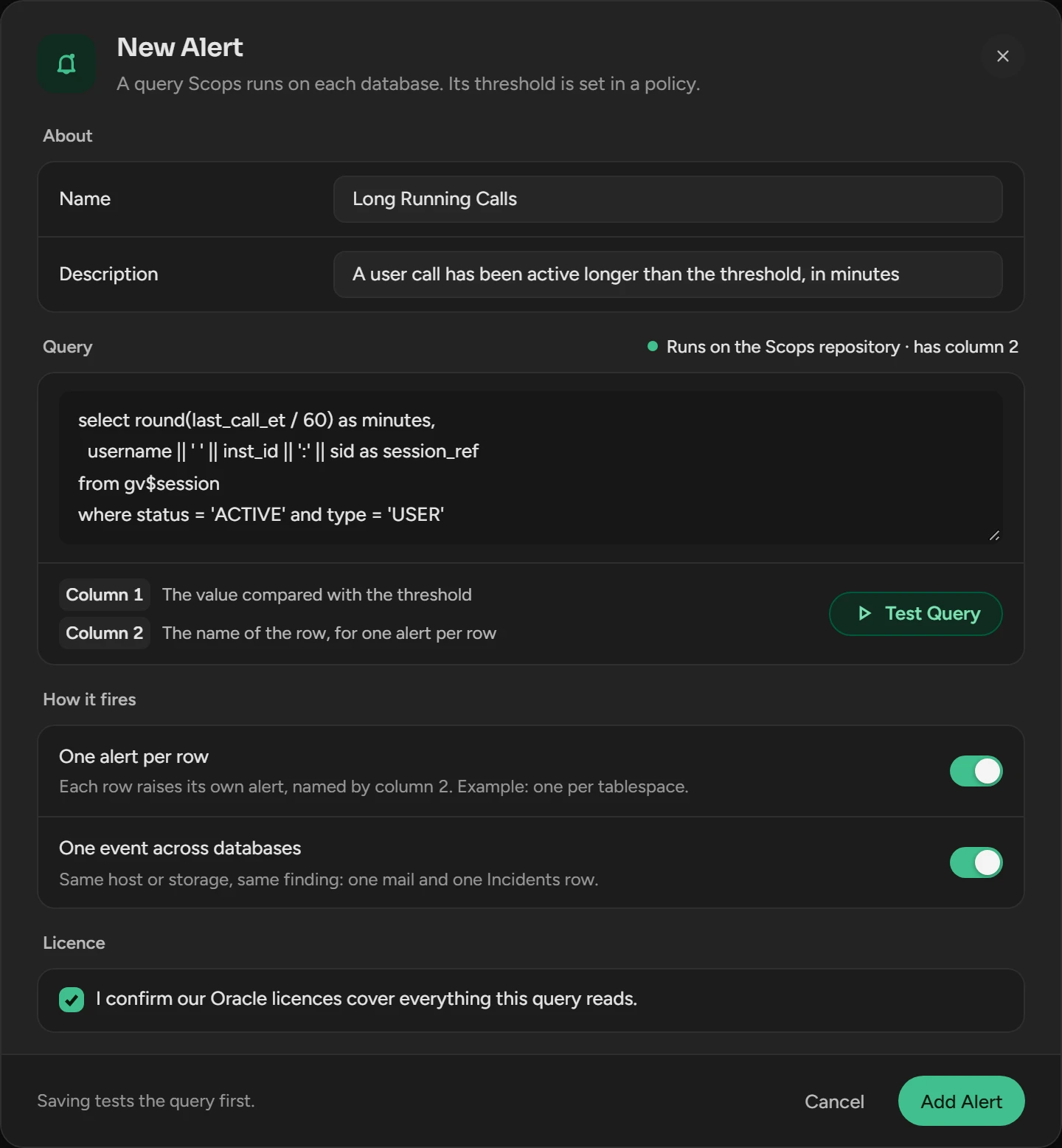
Under the list of policies, click New Alert.
Type a Name and a Description. The description goes into the mails.
Write the Query. Column 1 is the value to compare. With One alert per row, column 2 is the name of the row.
Select a database and click Test Query. You can save only after a passed test.
Confirm that your Oracle licenses cover what the query reads.
Click Add Alert. The alert opens in the Alert Catalog.
Click Add to Policy and select a policy. Set the rule, then click Add Rule. An alert that is in no policy checks nothing.
If you click New Alert in the Alert list of a rule, Scops selects the new alert in that rule.
- The query is one SELECT, or WITH … SELECT. Scops refuses PL/SQL and statements that change data.
- Scops refuses Diagnostics and Tuning Pack sources:
DBA_HIST_views, active session history, ADDM, the advisors and SQL Monitor. - The query runs on all databases of the policy at each check. Keep it light.
To open the catalog, click Alert Catalog under the list of policies. Your alerts are under Custom. The pencil edits your alert. The bin deletes it from all policies. You cannot change the alerts under Built-in.
Create an alert policy
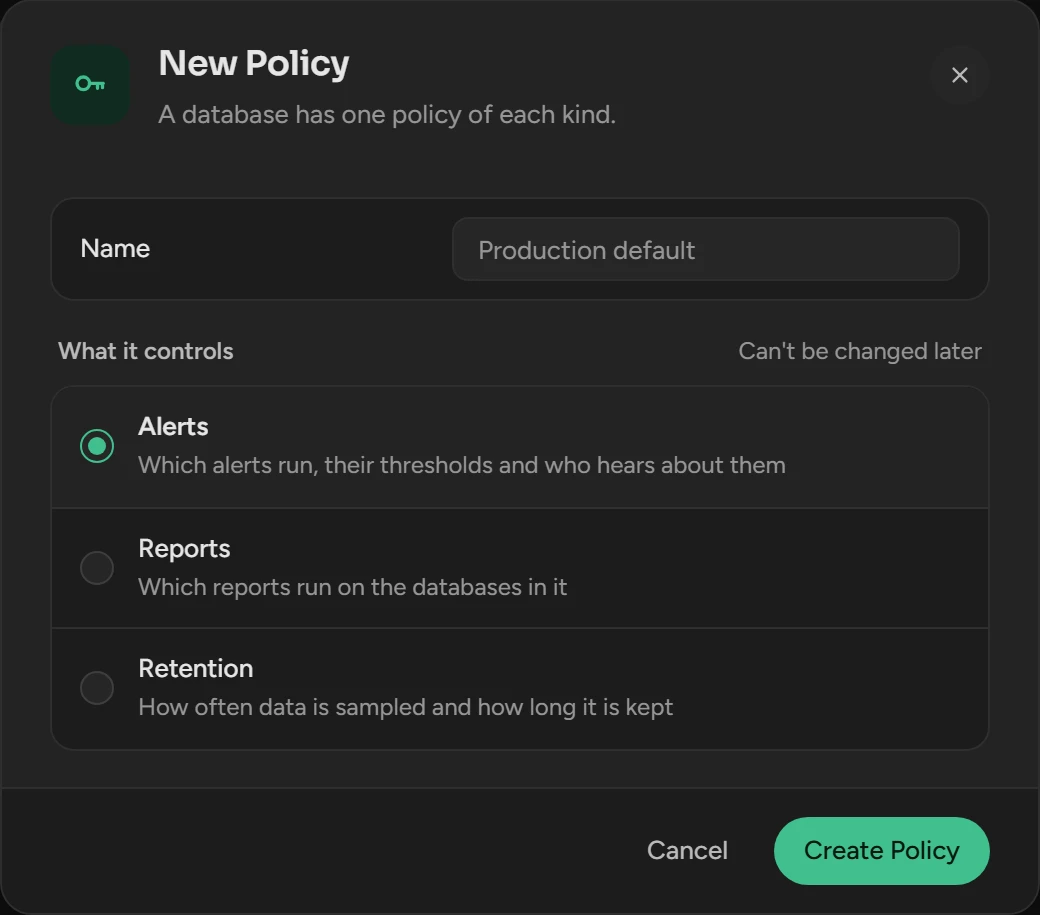
Click New Policy.
Type a Name and click Create Policy.
Assign databases. See the next section.
The new policy gets a copy of the rules of Default Alerts, without their exceptions.
Assign databases
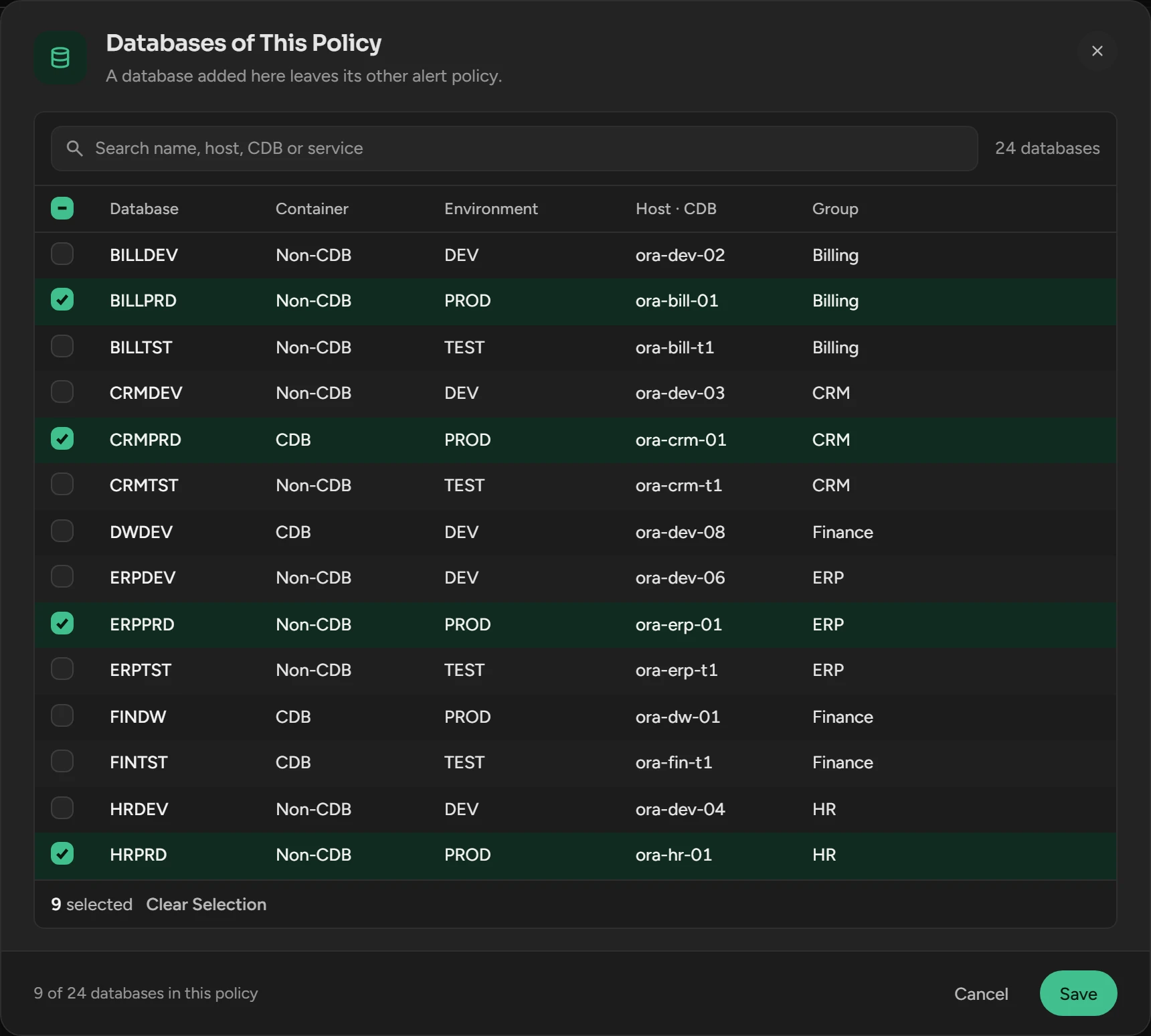
Click the database count of the policy, for example 9 databases.
Select the databases of the policy. Clear the others.
Click Save.
A database that you add leaves its old alert policy. A database with no alert policy raises no alerts: show them at the bottom of the list shows these databases.
Stop, rename or delete a policy
- Running switch: a stopped policy keeps its databases but checks no rules.
- Pencil: rename the policy.
- Bin: delete the policy. Its databases then have no alert policy.
When an alert fires
The alert opens on Incidents. Scops sends the mail, and a trap if Trap is on.
While the alert is open, Scops sends the mail again if Remind is set.
At the first check without the condition, the alert clears and Scops sends the cleared mail.
The same finding on databases with a shared host or storage is one mail and one row.
Built-in alerts
| Alert | What it checks | In Default Alerts |
|---|---|---|
| Backup | RMAN jobs of the last day that failed or ended with errors. | Contains ERROR |
| DB Access | If Scops can reach the database. | Its own logic |
| Tablespace Usage | Free space and used percent of each tablespace. | Under 10 GB free and over 90% used |
| ASM Usage | Usable space and used percent of each disk group. | Under 1024 GB usable and over 95% used |
| FRA Usage | Used percent of the fast recovery area. | > 80 |
| Process Limit | Use of the processes limit, in percent. A PDB counts only what it can see. Add the CDB root to watch the whole limit. | > 80 |
| Dataguard Gap | Archived logs not applied on a standby. | > 5 |
| Anomaly Waits | Active sessions in Application, Concurrency, Configuration or Other waits. | > 20 |
| Unusable Indexes, Unusable Index Partitions | The number of unusable indexes or index partitions. | > 0 |
| SQL Plan Change | Watched statements that leave their expected plan. | Its own logic |
| OS Log Match | Findings in the alert, ASM, CRS and listener logs. | Not included |
Related
Updated October 30, 2026